For: Admins · Time: about 5 minutes
You need: admin access and the Custom Fields package
Custom fields let you record information that isn't built in, such as a person's location, department, skills or skill level, or a project's RAG status. You can then filter the scheduler, build smart groups and report on them.
Create a custom field
- Go to Settings → Resource Custom Fields (for people) or Project Custom Fields (for projects).
- Click or drag a field type from the right-hand panel: Text Field, Dropdown, Radio Button, Color, Text Area, number, email, checkboxes or date picker.
- Enter a Field Name and a Display Description so people know how to use it.
- For a dropdown or radio button, type each choice and click Add. Choose whether choices are sorted alphabetically and whether people can select multiple values.
- Choose whether the field is Searchable in Filter (recommended), whether people can edit it themselves, and whether it's Required.
- Click Save Changes.
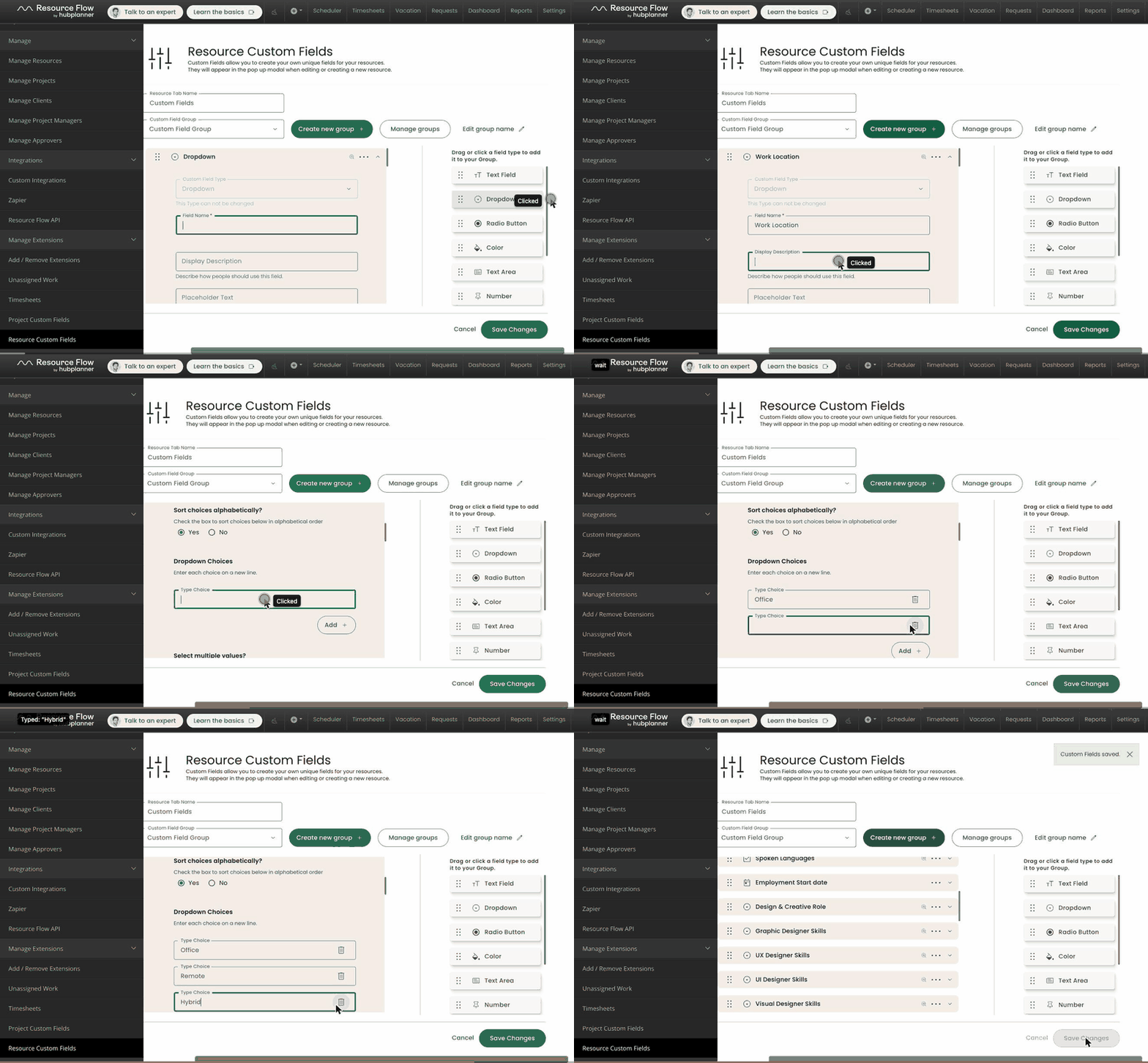
Adding a dropdown custom field
Use the ⋮ menu on a field to duplicate or remove it, and drag the handle to reorder. You can also rename the tab people see, for example from Custom Fields to Project details, in the Tab Name box.
Fill in custom fields
Edit a resource or project and open the Custom Fields tab. Expand a group, choose the value and click Update. You can see this at the end of the GIF in Add, invite and edit a resource.
? Tip: Build a skills matrix. Create a multi-select dropdown of skills plus a radio button for level (unaware, basic, advanced, expert). You can then filter the scheduler to find, for example, every advanced designer.
⚠️ Warning: Only make a field Required if it applies to everyone. Otherwise people can't save without filling it in.
FAQ: Why can't I see custom fields?
Custom fields are part of the Premium package or available as an add-on. Contact your account manager to turn them on. Long lists of fields can be organised into groups with the Custom Field Groups extension.
Related articles
Was this article helpful?
That’s Great!
Thank you for your feedback
Sorry! We couldn't be helpful
Thank you for your feedback
Feedback sent
We appreciate your effort and will try to fix the article