For: Everyone · Time: about 2 minutes
You need: a Resource Flow login
Choose which updates Resource Flow sends you, by email or Slack.
Turn on your notifications
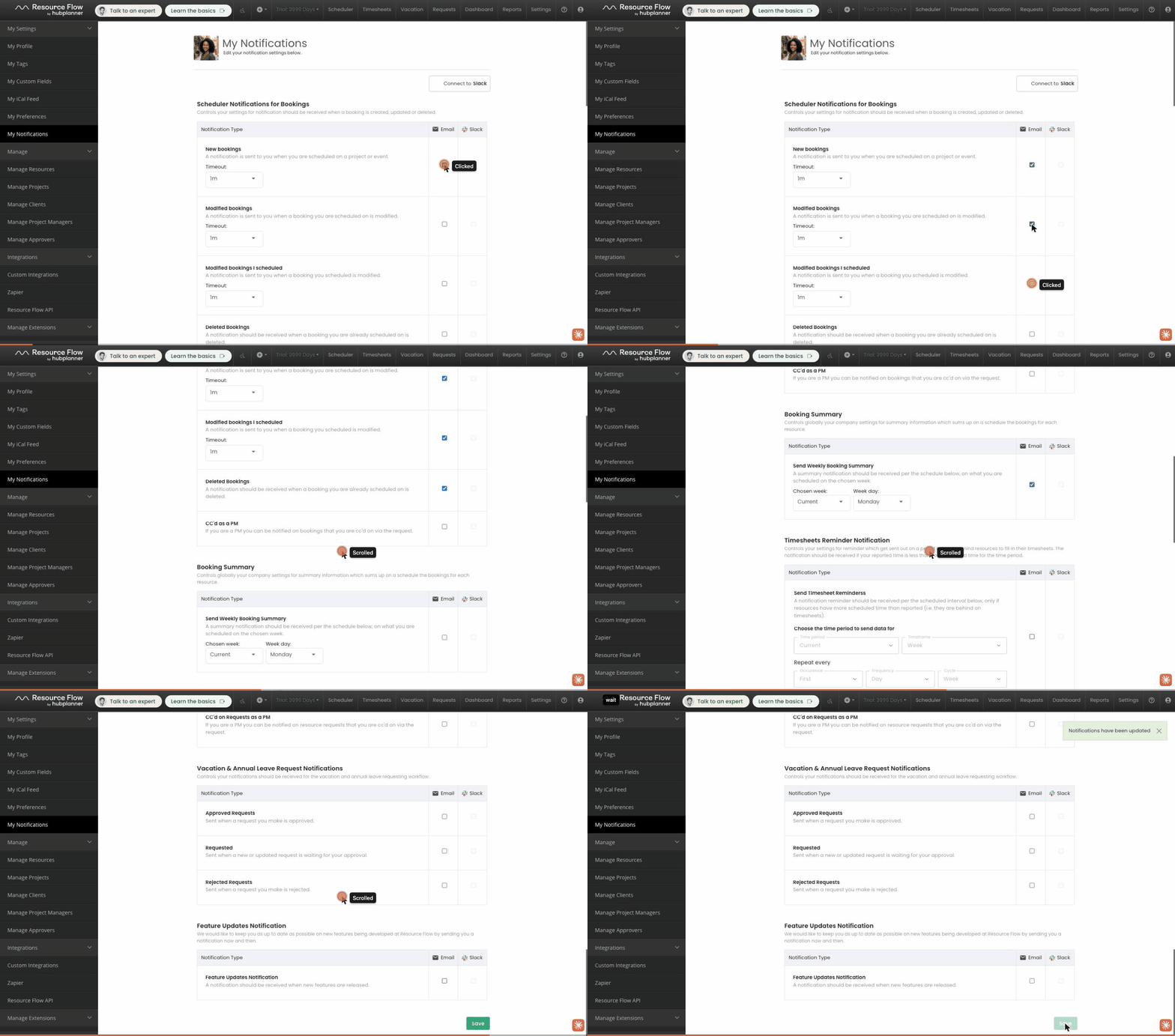
- Click Settings in the top menu, then My Notifications.
- Under Scheduler Notifications for Bookings, tick Email or Slackfor the updates you want:
- New bookings: when you're scheduled on a project or event.
- Modified bookings: when the dates, hours or category of your booking change.
- Deleted bookings: when a booking you're on is removed.
- Under Booking Summary, tick Send Weekly Booking Summary and choose the week (Current or Next) and the day you want it, for example Next week on a Friday.
- Under Timesheets Reminder Notification, tick Send Timesheet Reminders and choose when. For example, Current week, every Friday.
- Click Save at the bottom of the page.
? Tip: Timesheet reminders are only sent if your timesheet isn't complete. If you've already submitted, you won't get one.
? Tip: A Monday reminder for Last week is a good safety net if you sometimes forget to fill in Friday.
FAQ: I've switched notifications on but nothing arrives.
Your admin controls notifications for the whole account. If they've switched a notification type off, your own setting has no effect. Ask your Resource Flow admin to check.
Related articles
Was this article helpful?
That’s Great!
Thank you for your feedback
Sorry! We couldn't be helpful
Thank you for your feedback
Feedback sent
We appreciate your effort and will try to fix the article