For: Team members · Time: about 10 minutes
You need: a Resource Flow login
Welcome to Resource Flow. As a team member you'll mostly use it to see what you're working on, log your time and book time off. Work through these five steps in your first week.
Your first week
- See your schedule. Click Scheduler and open My schedule in the sidebar. Each bar is a booking: the project, how much of your time it takes, and when. Week scale is usually the easiest view.
→ Navigating the scheduler - Set your landing page. Go to Settings → My Preferences and choose Timesheets or My Schedule, so you land there every time you log in.
→ Set your landing page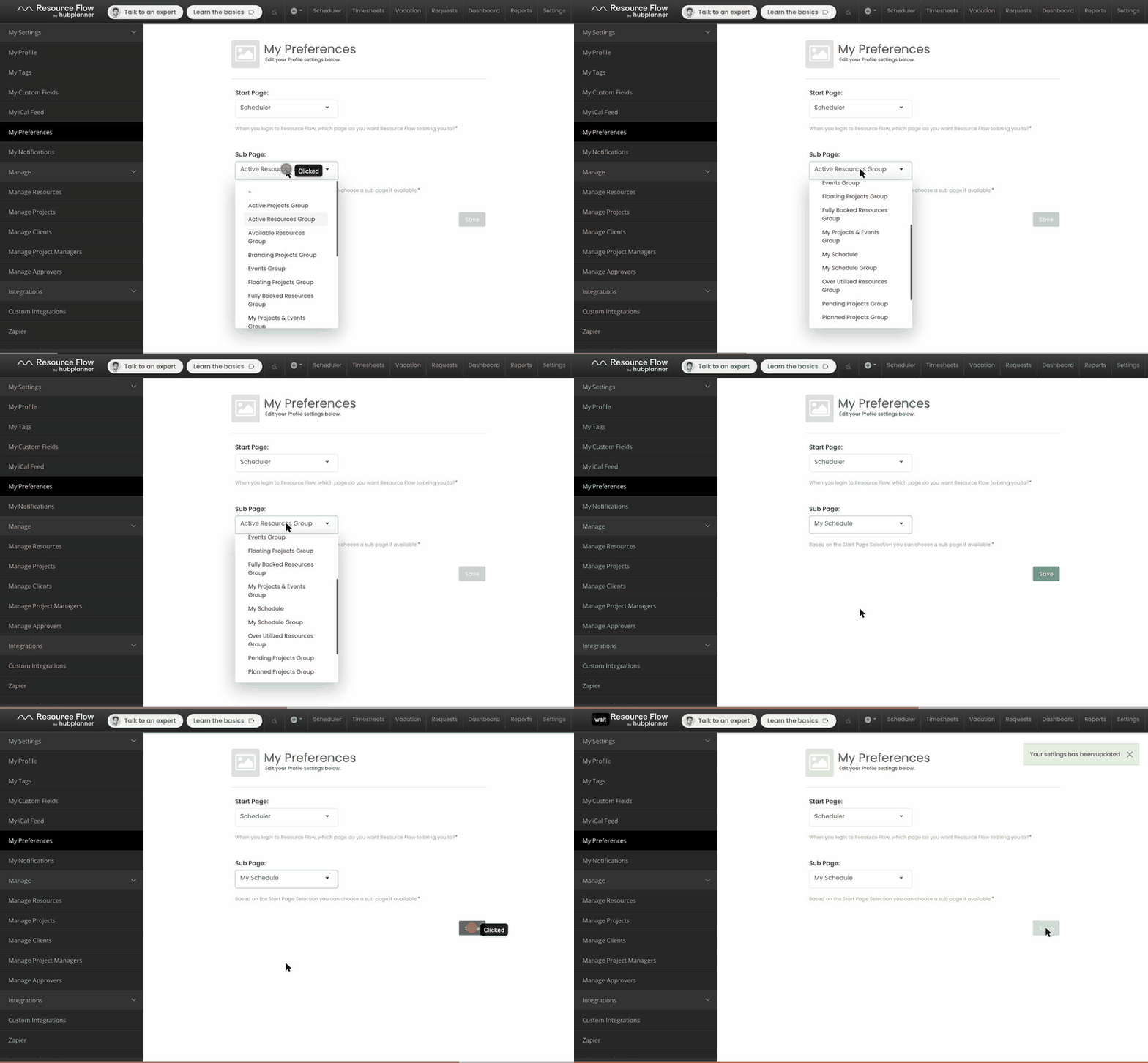
Choosing a start page in My Preferences
- Complete your timesheet. Your timesheet fills in from your schedule. Check the hours, change anything that's different, add any unscheduled work, then click Submit All.
→ How to complete your timesheet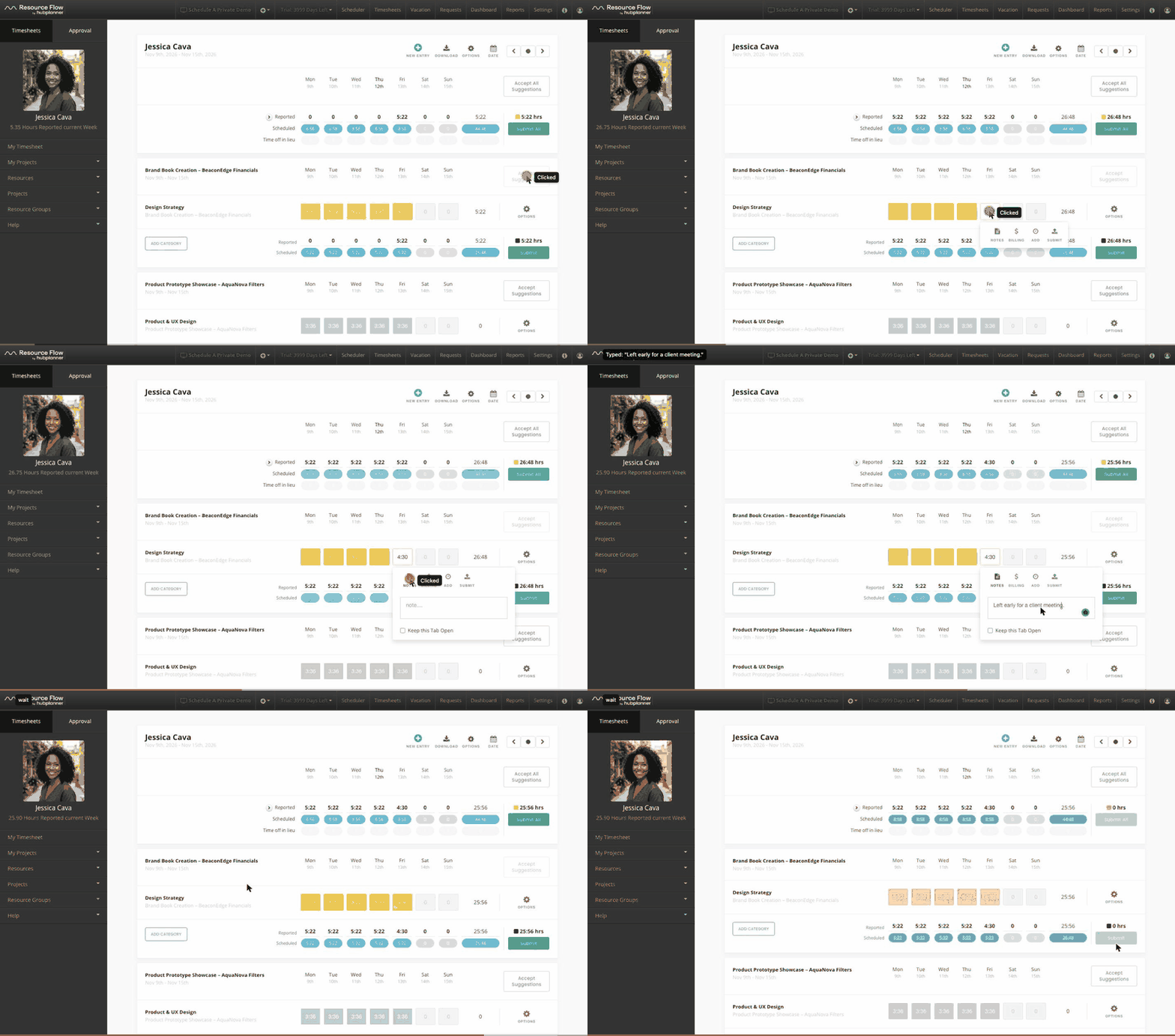
Accepting suggested hours and submitting the week
- Book time off. Use Vacation in the top bar to log annual leave or an absence.
→ How to log annual leave or an absence - Turn on reminders. In Settings → My Notifications, switch on the Timesheets Reminder and choose the emails you want.
→ How to set up your notifications
? Tip: You can't break anything. Rows that come from your schedule can always be reset with Clear and unlock time.
Still stuck?
Ask your Resource Flow admin, or contact support from the ? icon at the top right.
Related articles
Was this article helpful?
That’s Great!
Thank you for your feedback
Sorry! We couldn't be helpful
Thank you for your feedback
Feedback sent
We appreciate your effort and will try to fix the article