For: Team members · Time: about 2 minutes
You need: a Resource Flow login
Add your leave to the schedule so your team can see when you're away and nobody books you by mistake.
Add your leave
- Open My schedule in the sidebar.
- On your row, click and drag across the dates you'll be away, then click the three dots at the end of the highlighted area.
- Check the start date, or type the number of days. The end date updates for you and skips weekends.
- Leave the allocation at 100% for full days. For a half day, change hours a day to half your usual day.
- Click Choose a Project or Event, switch to the Events tab, type the leave type (for example Annual Leave or Sick Leave) and select it.
- Click Schedule. Your leave appears on your row.
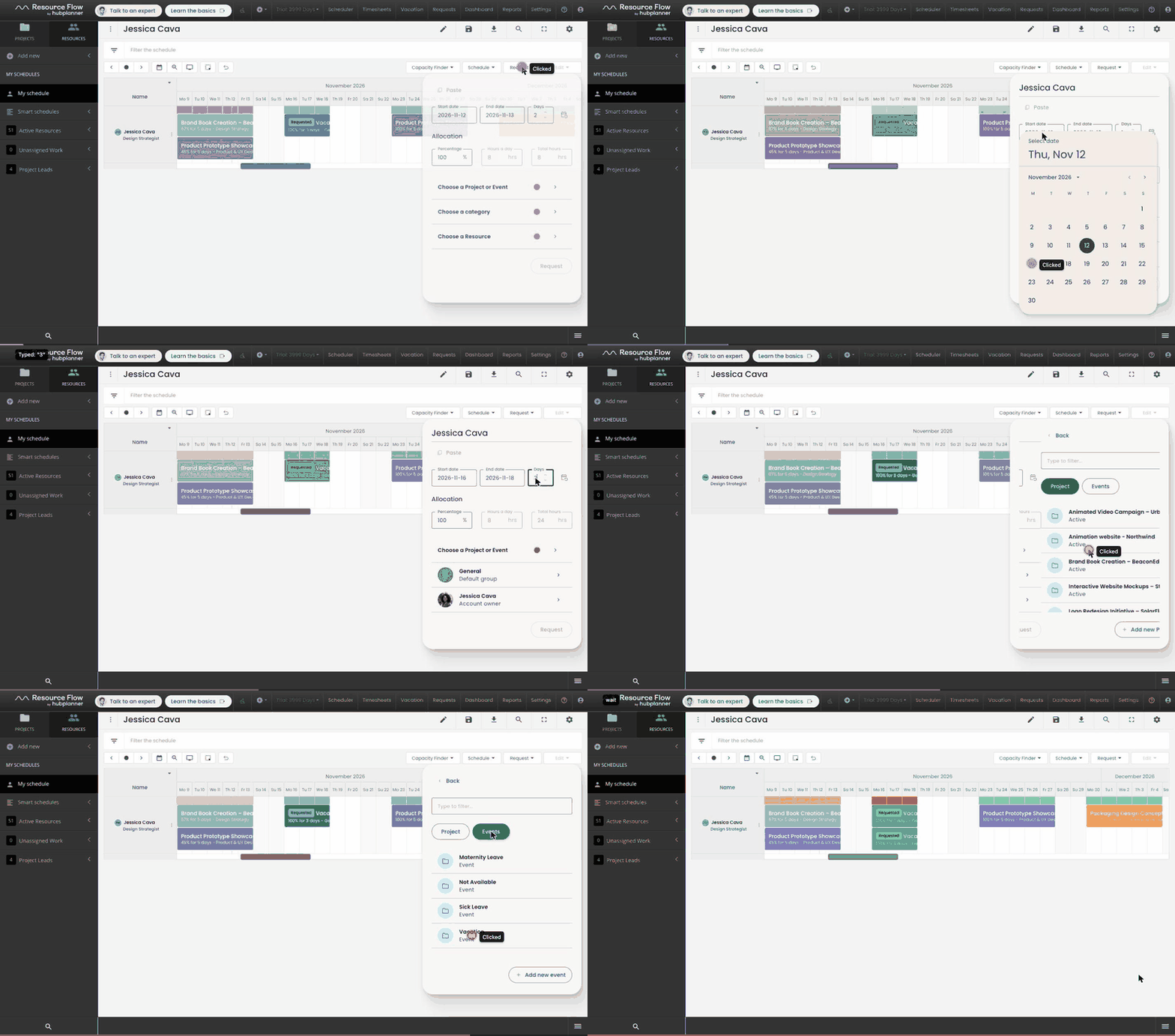
Adding annual leave from My schedule
Change or remove leave
- Change the dates: drag the ends of the leave booking, or click it and edit the dates.
- Delete it: click the booking's three dots and choose Delete. You'll be asked to confirm.
? Tip: Your organisation decides which leave types are listed under Events. If you can't see the one you need, ask your Resource Flow admin.
? Tip: If your organisation approves leave, use Request Vacation at the top of the booking panel instead of Schedule.
Related articles
Was this article helpful?
That’s Great!
Thank you for your feedback
Sorry! We couldn't be helpful
Thank you for your feedback
Feedback sent
We appreciate your effort and will try to fix the article