For: Managers and approvers · Time: about 3 minutes
You need: approval rights and the approval workflow switched on
When your account uses the approval workflow, submitted time waits for a project manager or admin to approve it before it counts as final.
Find time waiting for approval
- Go to Timesheets and open the Approval tab at the top of the sidebar.
- Under Time Entry Status, click Pending Approval. You can also view Unsubmitted, Submitted, Approved, Rejected, Locked or Unlocked time.
- Use the date range at the top right to change the week, and expand a person's name to see their entries.
Approve or reject
- One entry: use the icons in the Tools column: the tick approves and the cross rejects.
- Several at once: tick the entries, open Bulk Actions, choose Approve (or Reject, Lock, Unlock and so on), then click Apply.
- From a person's timesheet: click a submitted entry to open the approval toolbar, then click Approve or Reject.
Approved time turns blue and rejected time turns red. Depending on your timesheet settings, it may also lock automatically.
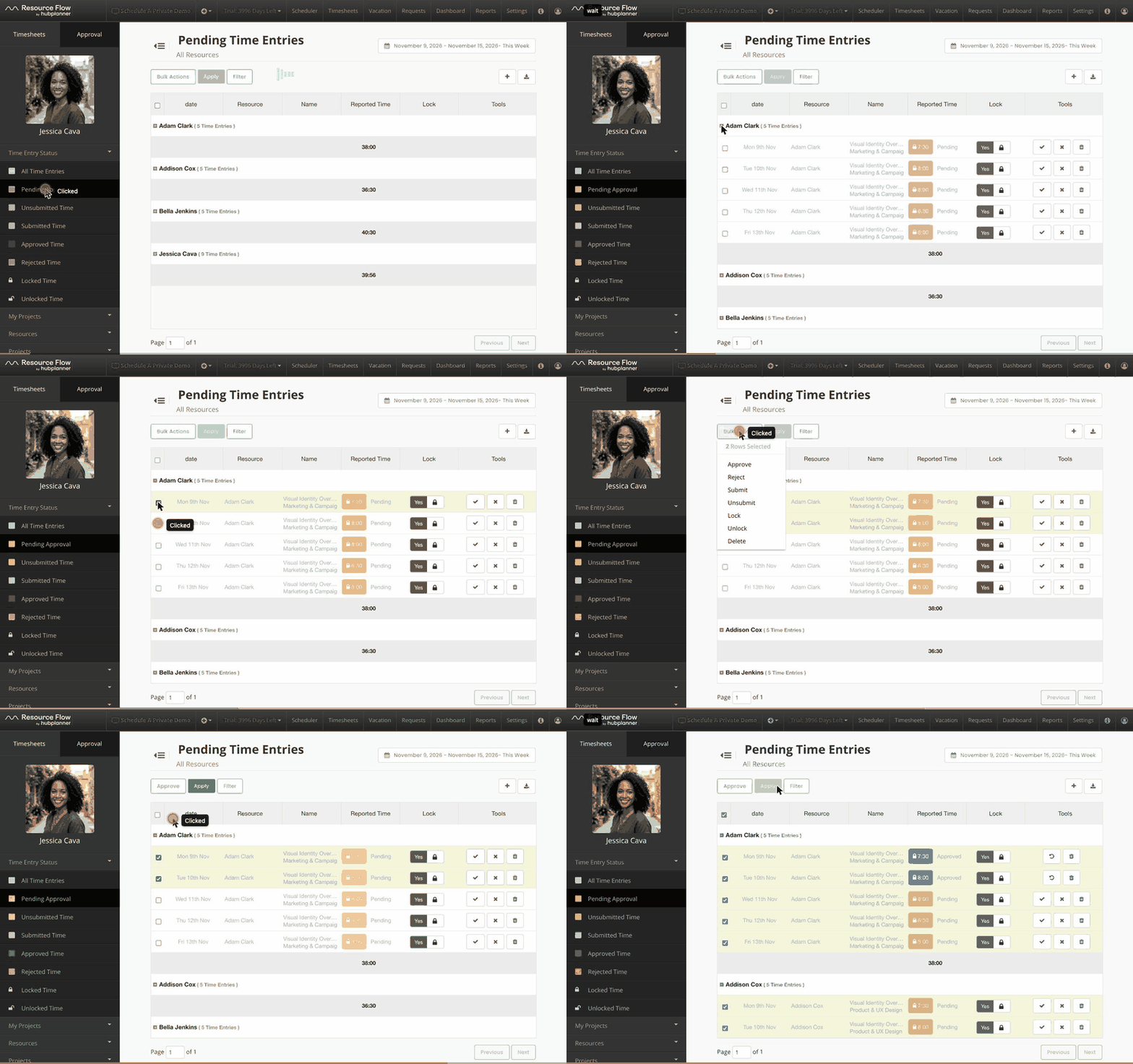
Bulk approving pending timesheet entries
Send time back for changes
Reject the entry, or click its lock to unlock it. The team member updates their hours and submits again. Approvers can also correct the hours themselves.
Who can approve?
Admins with the Timesheets Manage & Approval Rights role right can approve time for anyone they have access to. Project managers with Approval Rights on Managed Projects can approve time on the projects they manage. These are set in Settings → Roles → Timesheets.
? Tip: Turn the workflow on or off, and choose auto-lock per status, in Timesheet settings explained.
Related articles
Was this article helpful?
That’s Great!
Thank you for your feedback
Sorry! We couldn't be helpful
Thank you for your feedback
Feedback sent
We appreciate your effort and will try to fix the article