For: Admins · Time: about 5 minutes
You need: admin access and the Timesheets extension
Timesheets are an extension. Admins manage them under Settings → Manage Extensions → Timesheets. Click Save changes at the bottom of the page after making changes.
| Setting | What it does |
|---|---|
| Enable Time Sheets | Turns timesheets on. New projects and bookings are connected automatically. Tick Enable timesheets on all existing Projects and save to switch on any projects where it was disabled (the tick clears after saving). You can still turn timesheets off for an individual project, for example internal training. |
| Enable Approval Process | Submitted time waits for a PM or admin to approve it. The all existing Projects tick works the same way as above. |
| Require Notes on Timesheets | People must add a note before they can submit a time entry. Can also be set per project in the project window. |
| Project Selection | Whether people can add time only to projects they're on or have permission to, or to all projects and events. |
| Filter Archived Projects | Stops people logging time against archived projects. |
| Allow Timesheets to Exceed Scheduled Hours | Lets people log more time than they were scheduled (overtime). Turn off to cap entries at the schedule. |
| Suggested Time | Hide scheduled or suggested time, or show suggested time on non-working days and public holidays. Most teams leave the last two off. |
| Timesheet Status | The colours for each status, and whether time locks automatically in that status. |
Timesheet statuses
| Status | Default colour | Meaning |
|---|---|---|
| Unsubmitted | Yellow | Time has been edited but not submitted |
| Pending | Orange | Submitted and waiting for approval |
| Submitted | Green | Submitted, with no approval workflow |
| Approved | Blue | Approved by a PM or admin |
| Rejected | Red | Rejected by a PM or admin |
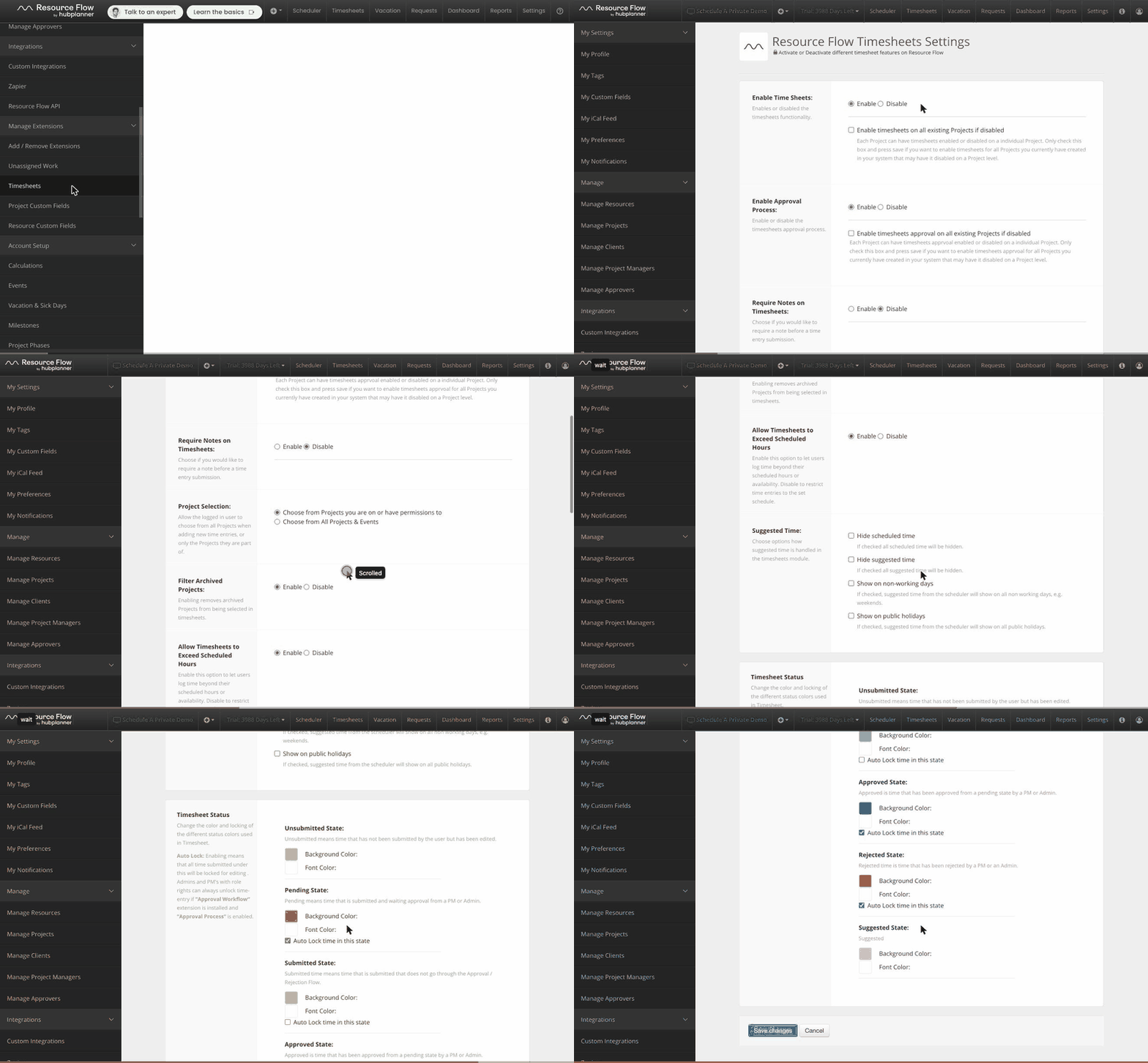
A tour of the Timesheets extension settings
? Tip: Auto Lock. With Auto Lock on for a status, time in that status can't be edited by the team member. Admins and PMs with the right role can always unlock it.
FAQ: Can I require notes on just one project?
Yes. Leave the global setting off and turn on required notes in that project's settings window.
Related articles
Was this article helpful?
That’s Great!
Thank you for your feedback
Sorry! We couldn't be helpful
Thank you for your feedback
Feedback sent
We appreciate your effort and will try to fix the article