For: Managers · Time: about 15 minutes
You need: manager access in Resource Flow
As a manager you'll use Resource Flow to plan who works on what, spot who's free or overbooked, and check time against plan. Work through these six steps.
Get set up
- Set up your view. Open the Scheduler, pick a group in the sidebar (or Active Resources), and choose a scale (week is a good default). Use full-screen to hide the sidebar.
→ Navigating the scheduler · Personal scheduler preferences - Make groups for your team. Create a manual group of the people you manage, or a smart group from filters so it updates itself.
→ How to create a manual group · Create a smart group from filters - Add projects. Use + → New project to add a project with its code, dates, PM and budget.
→ How to add a new project - Book people. Drag across someone's row to select dates, choose the project and allocation, and click Schedule. Use recurring bookings for weekly work, and split or bulk move bookings when plans change.
→ How to create a booking · How to create a recurring booking · Edit, split and bulk move bookings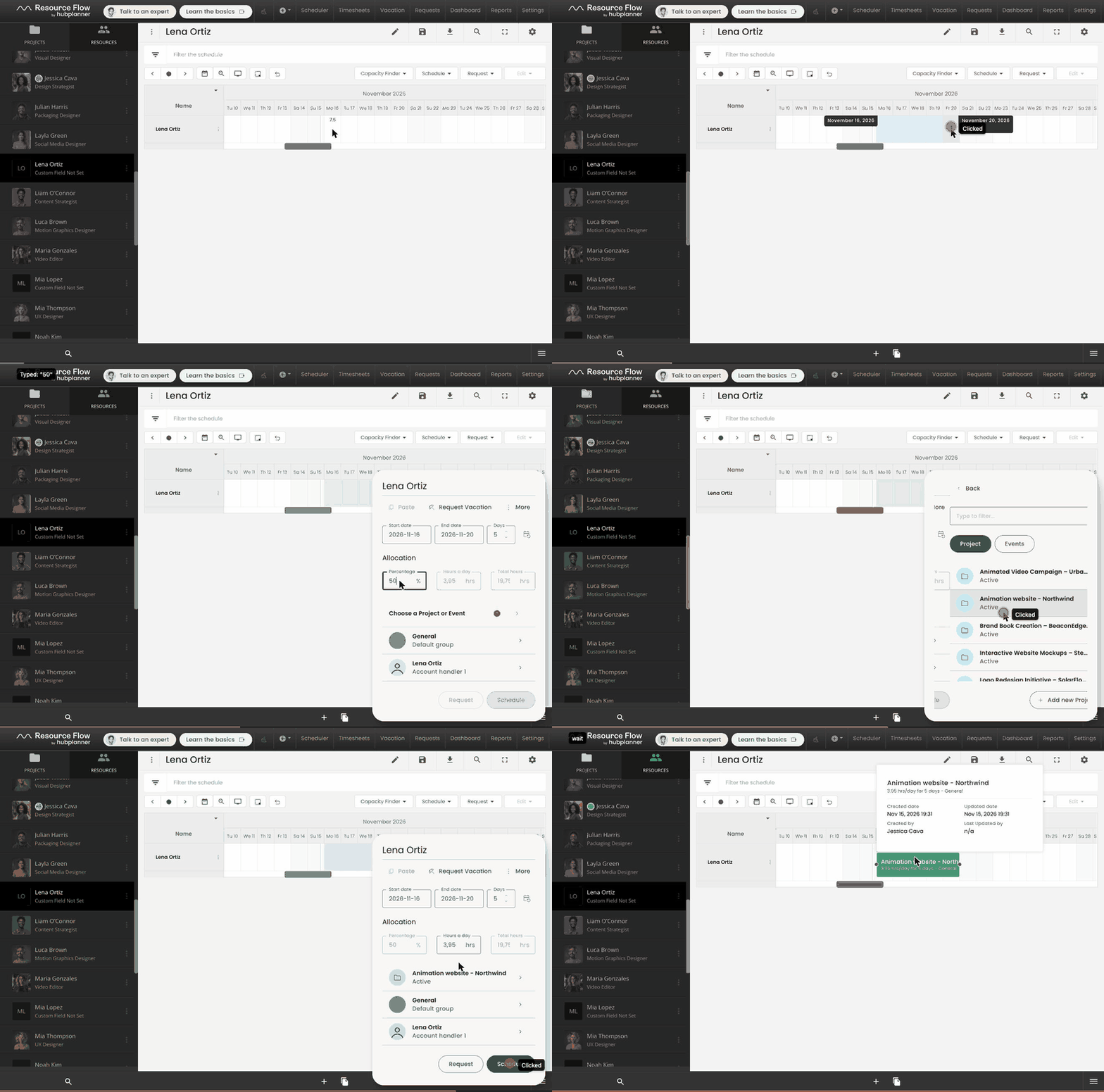
Booking people from the scheduler
- Check capacity. The coloured bar above each booking shows availability: green is fully booked, blue is under-booked and red is over-booked. Filter the scheduler to find the right person.
→ How to filter the scheduler - Review time and report. Approve timesheets if your account uses approvals, and use Reports to compare scheduled and reported time.
→ How to build a report
? Tip: Use a weekly repeating booking for long engagements, so you can change one week without touching the rest.
Related articles
Was this article helpful?
That’s Great!
Thank you for your feedback
Sorry! We couldn't be helpful
Thank you for your feedback
Feedback sent
We appreciate your effort and will try to fix the article