For: Managers · Time: about 3 minutes
You need: a group schedule open
A smart group is a saved filter. Unlike a manual group, where you pick people one by one, a smart group updates itself. For example, a group filtered to Location = New York and Department = Strategy automatically includes anyone who later joins that team.
Create the group
- Open a group schedule, such as Active Resources.
- Click the filter icon and choose your filters, such as a custom field, role, status, tag or Is Project manager. Combine filters with All or Any (see How to filter the scheduler).
- Click the save icon (disk) at the top of the scheduler.
- Choose how to save it:
- Group: shared with everyone who can see groups.
- Internal schedule: shared inside your organisation.
- Private schedule: only you can see it.
- Enter a Name and click Save as new. To change the filters of the group you're on instead, click Update.
Your new schedule appears in the sidebar under Smart schedules or your groups.
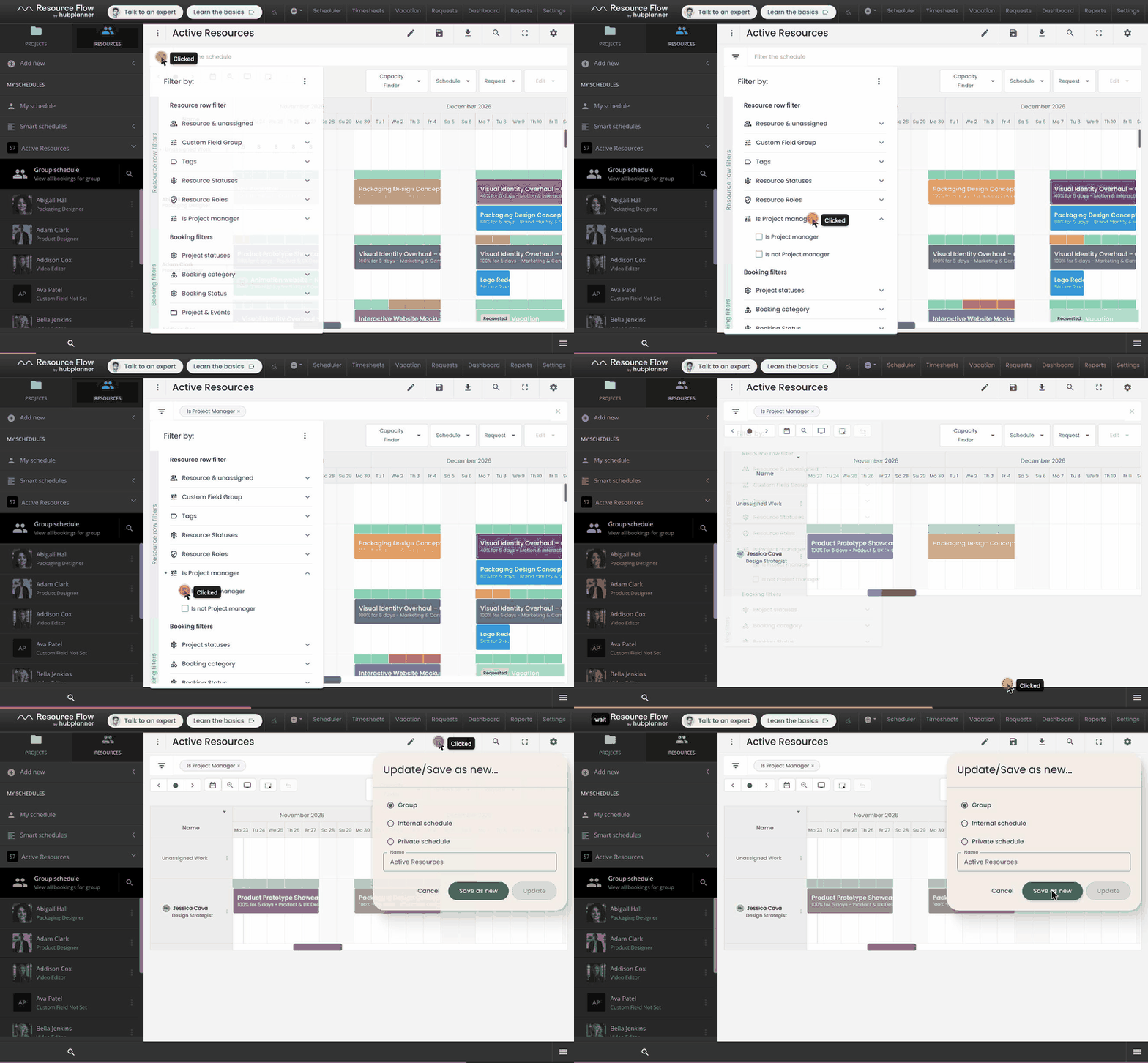
Filtering to project managers and the save options
? Tip: Quick navigation. Type a custom field value, such as a city, in the filter box and save the view. You can then jump straight to that set of people every time.
? Tip: Smart groups work in reports too, so you can report on the same set of people you schedule.
Related articles
Was this article helpful?
That’s Great!
Thank you for your feedback
Sorry! We couldn't be helpful
Thank you for your feedback
Feedback sent
We appreciate your effort and will try to fix the article