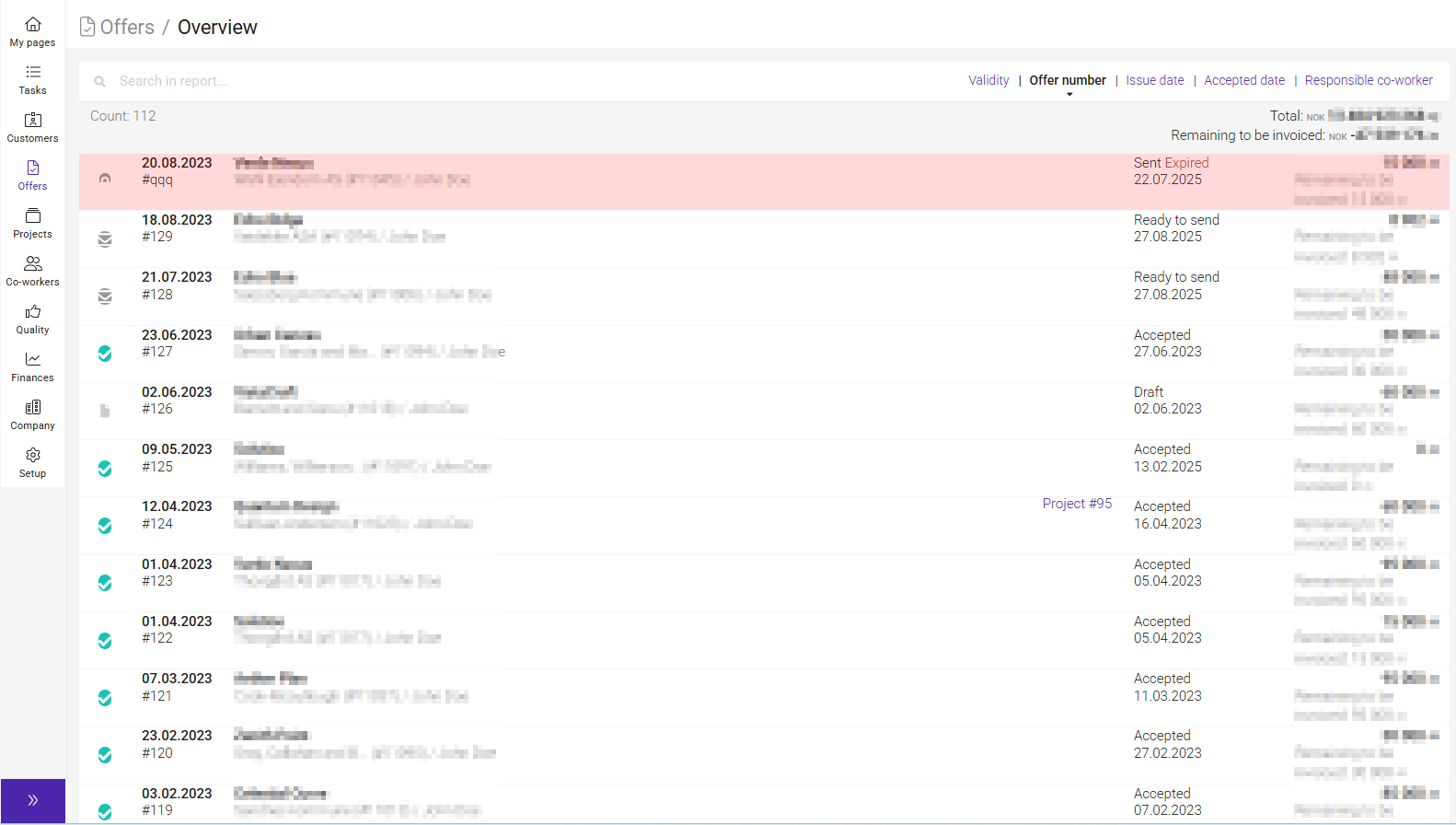
The Offer module in Moment allows you to create and send detailed offers to customers. These can include customized packages of hours linked to tasks or activities within a project.
To activate the module:
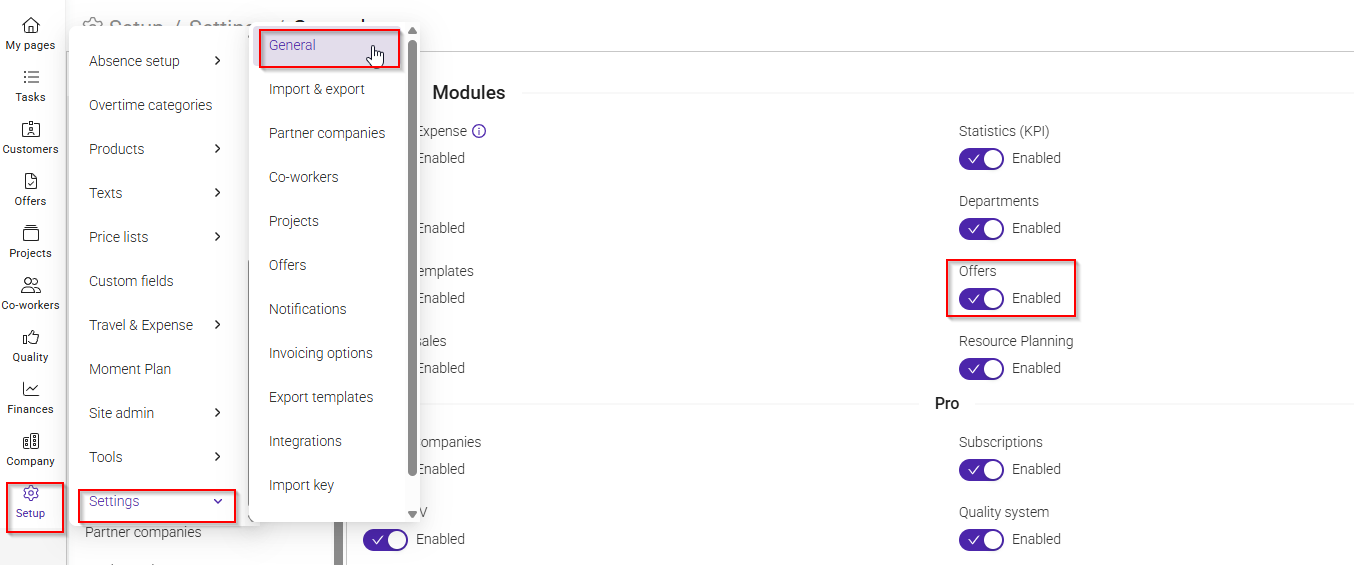
Go to Setup > Settings > General > Modules, enable “Offers” and save.
Go to Setup > Access control and give the relevant roles permission to use the Offer module.
Once this is done, the Offer module is ready to use and it appears int main menu
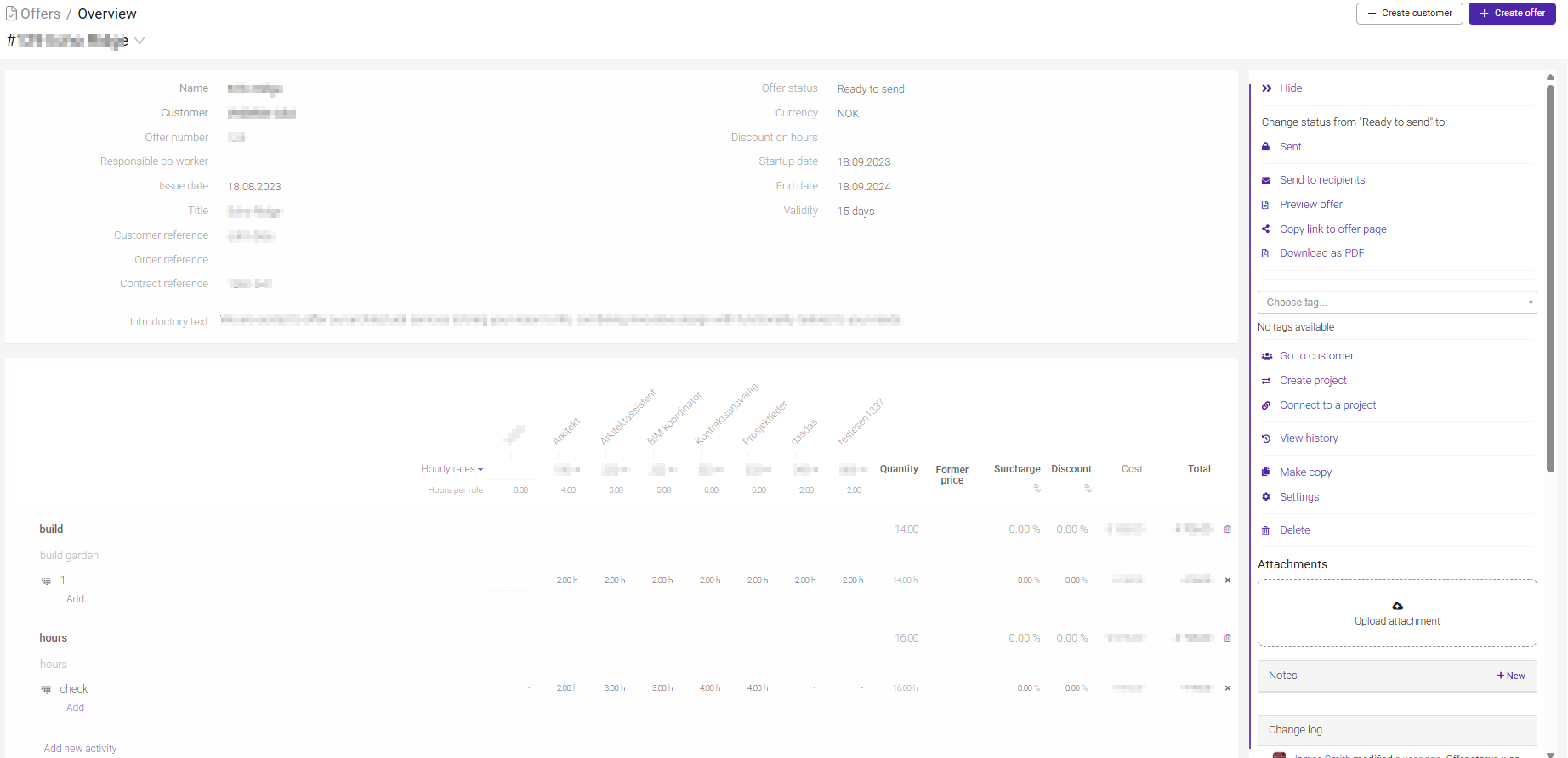
By clicking “Create offer” you can create a new offer.
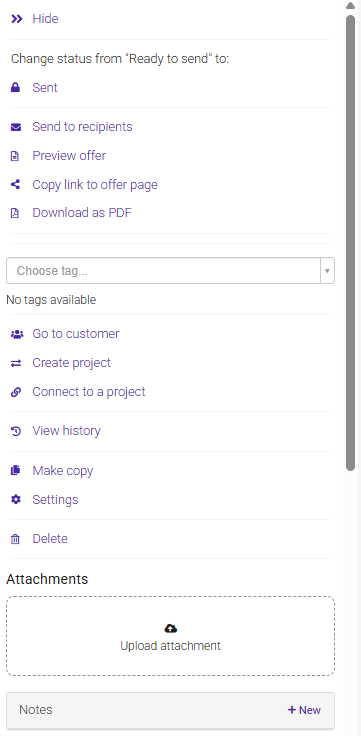
You can manage your offer from the menu on the right-hand side. Here is a simple overview of what the different options do:
- Ready to send / Sent
Change the offer status when it is ready to be sent to the customer, or mark it as sent
- Preview offer
Open a preview to review how the offer will look before sending
- Copy link to offer page
Create and share a direct link to the offer
- Go to customer
Jump directly to the connected customer record
- Create project
Create a new project based on this offer
- Connect to a project
Link the offer to an existing project
- View history
See changes that have been made to the offer over time
- Make copy
Duplicate the offer if you want to reuse it as a template or create a similar offer
- Settings
Adjust offer-related settings
- Delete
Delete the offer if it is no longer needed
- Upload attachment
Add files or supporting documents to the offer
- Notes
Add internal notes related to the offer
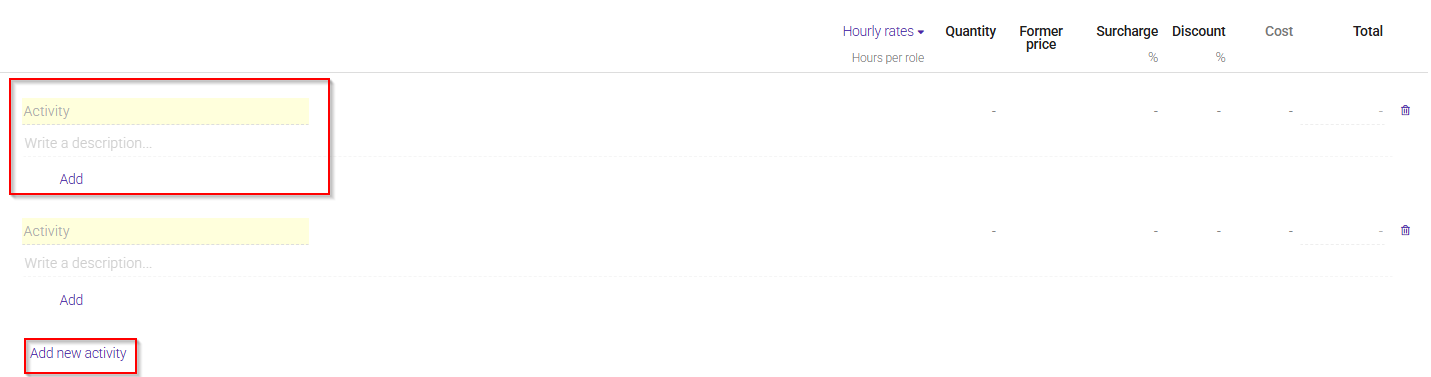
You can also work with activities in the offer, where you can add pricing, hours, or structure the offer content. “Add new activity” lets you include additional activities if needed.
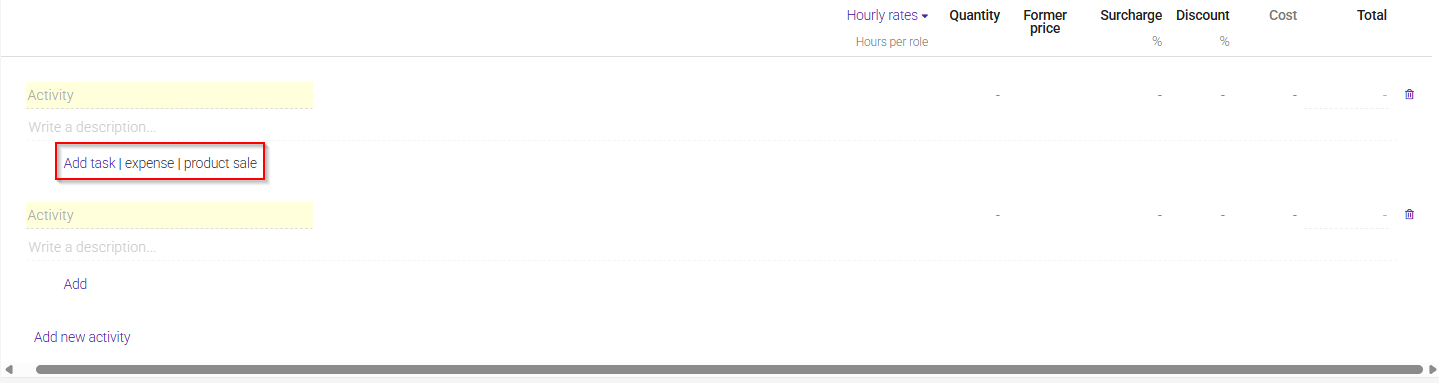 You can also choose to add task, exspence or product sale to the offer.
In Moment you can send offers directly to your customers by email.
To do this, it is recommended to add contact persons on the customer’s main page first.
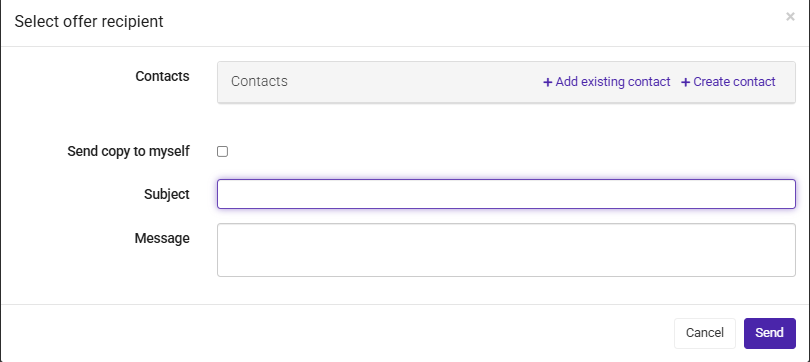
When your offer is ready, click “Send to recipient”. A window will appear where you can choose a contact or add one manually. You can also include a message. The email will contain a link to the offer.
Through the link, the customer can accept or decline the offer. The person set as responsible for the offer will receive a confirmation email.
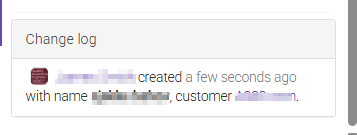
If the confirmation email is not received, you can still check the status in the offer’s changelog. It shows who responded, when it was done and any message from the customer.
Was this article helpful?
That’s Great!
Thank you for your feedback
Sorry! We couldn't be helpful
Thank you for your feedback
Feedback sent
We appreciate your effort and will try to fix the article