In this article we will describe how to set up partner companies in Moment, and how to use them
First, you need to remember that Partner Companies in Moment is a Moment PRO feature and is not available for all customers.
The main features of partner companies are the following:
- Sync of hours between projects in two different companies (useful for internal invoicing)
- Project leaders can see live the amount of hours registered on the projects, allowing for easy control of resources. In other words reporting is updated in real-time. No need to wait for delivery of hours lists from consultants/external-co-workers
- Sharing of resources between companies (co-workers can participate in projects across companies)
- Sharing of number series, projects, travel expenses, routines, hourly rates and customers
- Moment's customizable access control gives you flexibility so you can invite external co-workers (consultants) to work across your companies and projects without exposing all your sensitive data
- Cross-company task availability
If you are in doubt whether partner companies is a solution for you, please contact our customer consultants or our support team.
Setting up partner companies in Moment:
To set up partner companies, you need to be an administrator in all companies involved. The following steps need also to be repeated by every company that will be in the group. You need to also contact our support to register your partner company group.
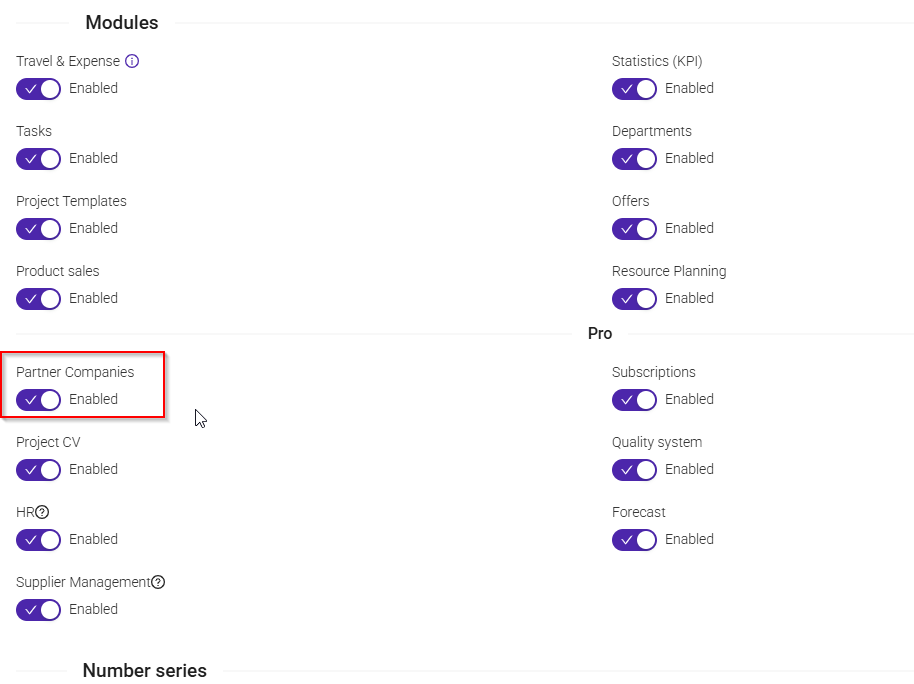
First go to Setup > Settings > General > Partner Companies and enable Partner Companies*
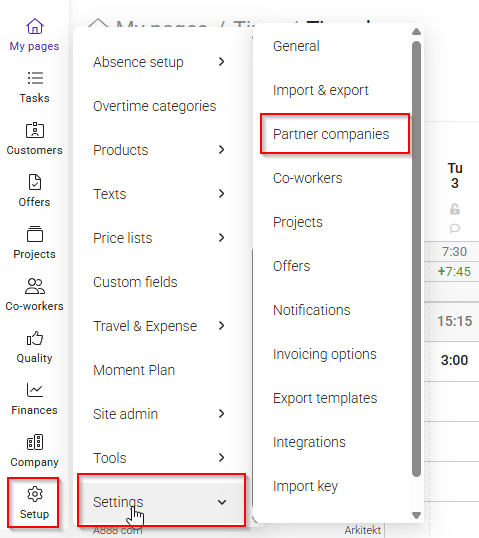
This will give a new option in Moment under Setup > Settings > Partner Companies
In here you can start adding the companies that will be part of your group

On the left side, you will be able to add new companies, on the right side, you can confirm the companies once you have added them.
By clicking "Add new" on the right side, you can add the database name to add the company to your group. The database name can be found in the URL when you are logged in Moment:

Once you have added the database name, you will be able to see the company on the left side, mark :

The next step, involves changing to the other database.
It is also important to remember that both companies need to exist in each other databases as customers.
Once the steps above have been repeated. Go to the Partner Companies setting page, and choose a customer to attach each database to. This is very simple:
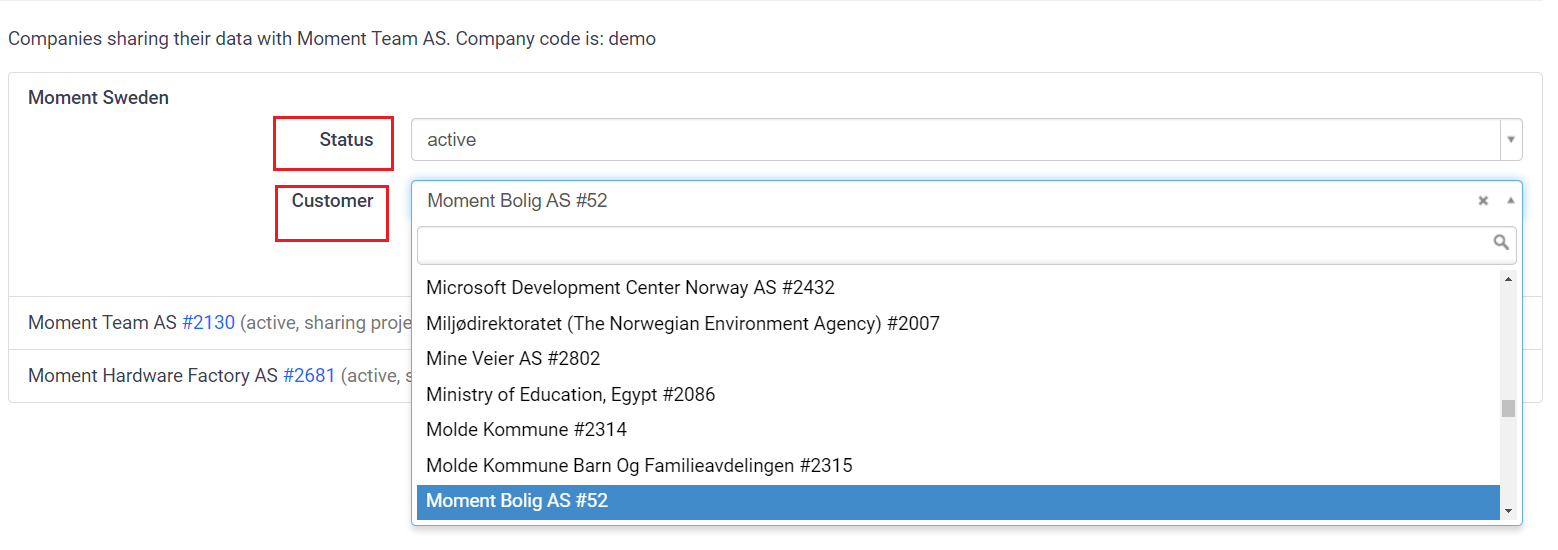
Once this has been done in each of the databases that will be connected to the group, please contact our support team. Then, we will create the group in our database and the process will be complete.
Number Series for Partner Companies:
When Partner Companies is enabled you will have other choices for deciding the way in which some number series in Moment are going to work.
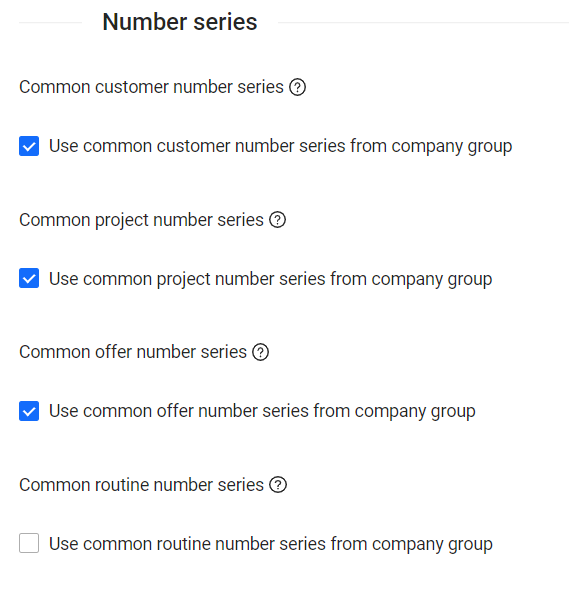
These settings are simple, they allow you to decide whether you wish to use the number series inherited from the main company, or keep using the same as before.
Sharing of customer data:
If Partner Companies is enabled, you have the option to share customer data across companies.
When you register a new customer within a Partner Company group, you will a prompt like this: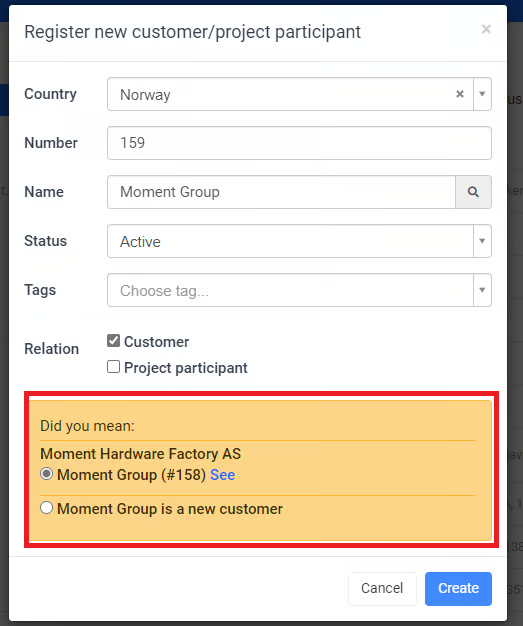
By clicking on the highlighted text, you will get the following infobox:
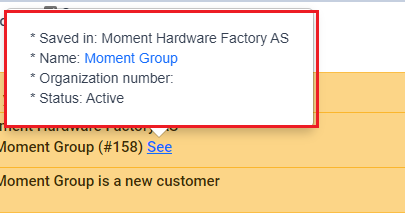
This infobox indicates that the customer already exists in another company in the group and the status is active.
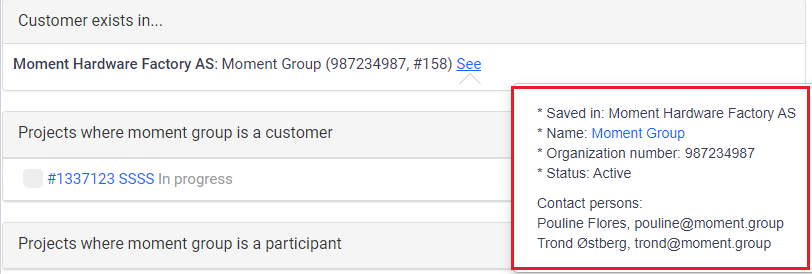
When the customer is created, and it already exists in another company in the group, info such as organization number and contact persons will be available:
Was this article helpful?
That’s Great!
Thank you for your feedback
Sorry! We couldn't be helpful
Thank you for your feedback
Feedback sent
We appreciate your effort and will try to fix the article