The most important feature in Partner Companies, is the ability for projects to be shared among different companies that also use Moment. However there are certain rules when Partner Companies is enabled that need to be followed for projects to be set up. In this article we will show how to set up projects in Partner Companies.
Create a project in the main company:
First, create a normal project in the database from which you wish to invoice the final customer. This will be the "main company" in this case.
Inviting co-workers from other companies:
Once the project has been created, go to *resources > co-workers > add a new co-worker*
here you will have to invite the co-workers you wish to add to your projects. If you wish to add all co-workers from one company to another as external co-workers we might be able to assist you. In that case please contact support.
Write the e-mail address of the co-worker. Moment will match this to any existing accounts and you will be able to invite them to your database. You do not need the co-workers to answer this e-mail for you to add them to projects. Once the invitation is sent you can proceed.
Adding the co-workers:
After you have invited the external co-workers, you can add them to the project as you would with any other co-worker:
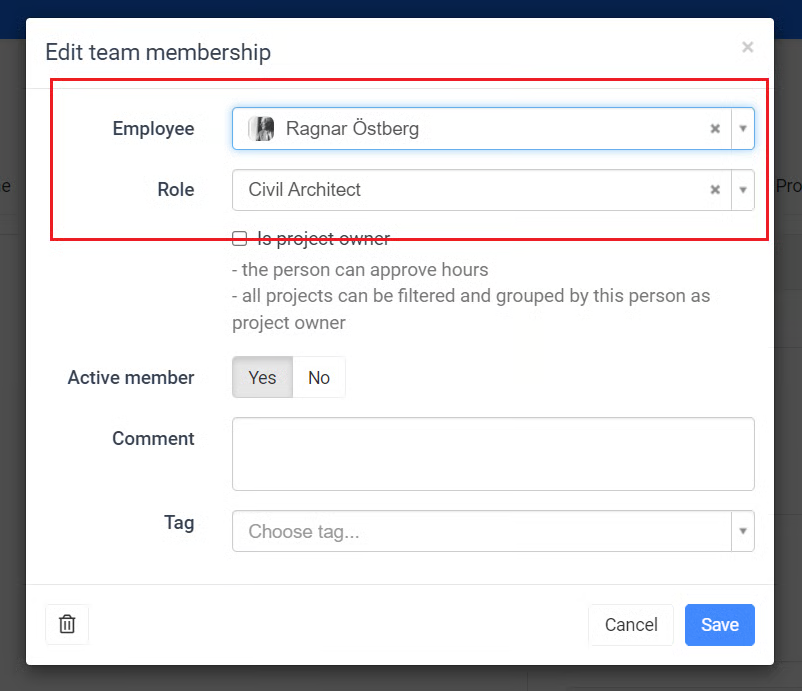
it is important to remember that co-workers, internal or not, MUST be added from the main project in order to work correctly.
After you add a co-worker, a link to an external project will immediately be created, although you might need to refresh the page to see it:
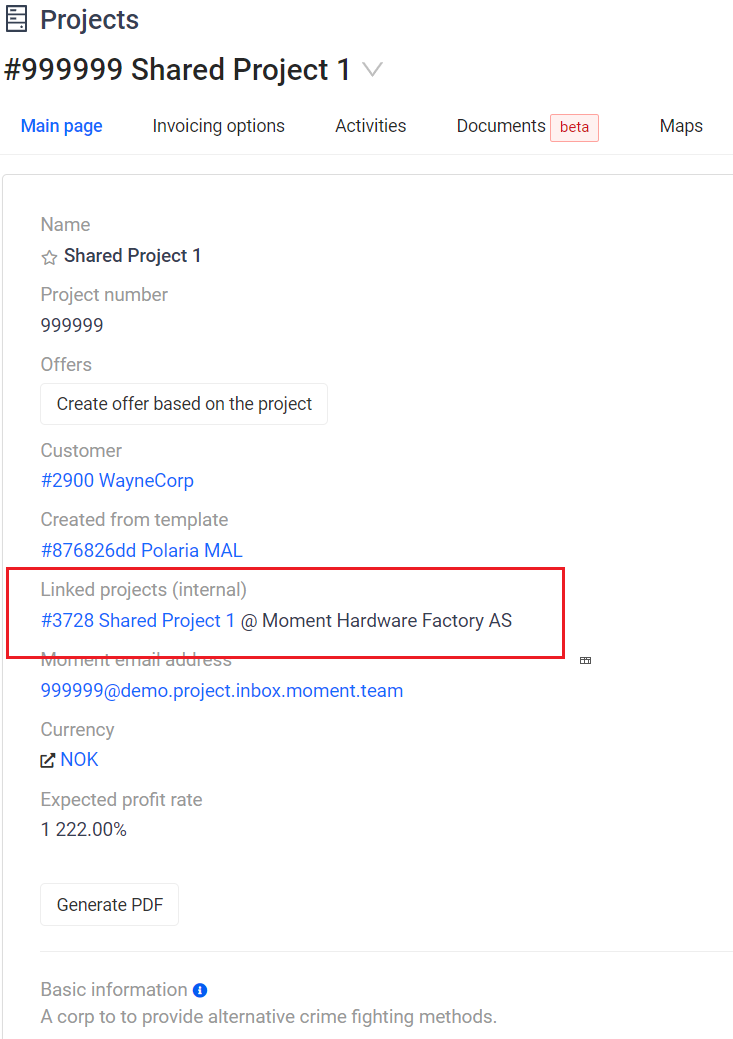
If the name of the external project shows up (red square in the screenshot above), then it means that the link between companies has been successful.
How will my co-workers register hours?
We can conclude that when a shared project is created, in fact, two projects are created, one main project, and a secondary project in any company from which you have retreived co-workers.
For the individual co-workers, what they see when they log in to Moment may vary. Depending on the way your access control and login works. Some co-workers m,ight be able to choose which database to use. For them, it might look like this:
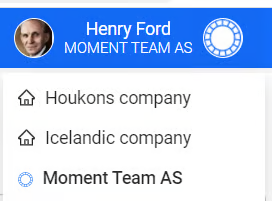
In this case, it means that the co-worker in reality has access to three companies. However, the main point is that regardless of company affiliation, the co-workers must always register hours in their main company.
The co-worker will be able to easily identify that they are registering hours correctly, by loking at his/her timesheet. In this screenshot you can see how the project will look like in the timesheet, the project name has a distinct icon next to it:
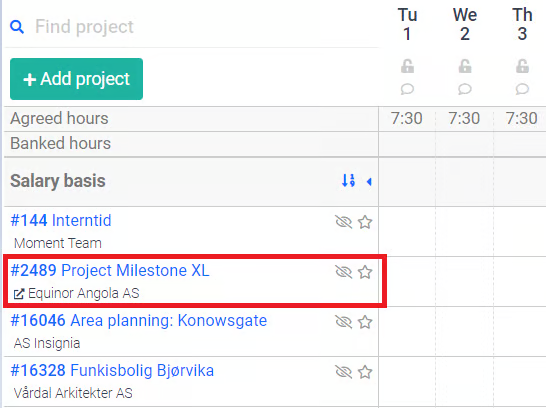
This is a very important point. If hours are registered only in the main project, then hours will be registstered in the main company. This means that internal invoicing will not work, hours balance is incorrect and so forth. In general, contact our support team if you are in doubt regarding whether you Partner Companies setup is correct.
Which values are inherited between the main project and the secondary project?
When partner companies is set up, and a shared project is created, values are inherited from the main project to the secondary project in the other companies. Activities will be copied, as they need to be the same in both projects in order for the hours registration and sync to work correctly.
Milestones from the main project will also be transferred to the secondary project, although will not be visible in the Project Plan
It is also possible to set up the price models in such a way that you can base the price model of the secondary project on the values from the price model. This is an option enabled on the secondary project:
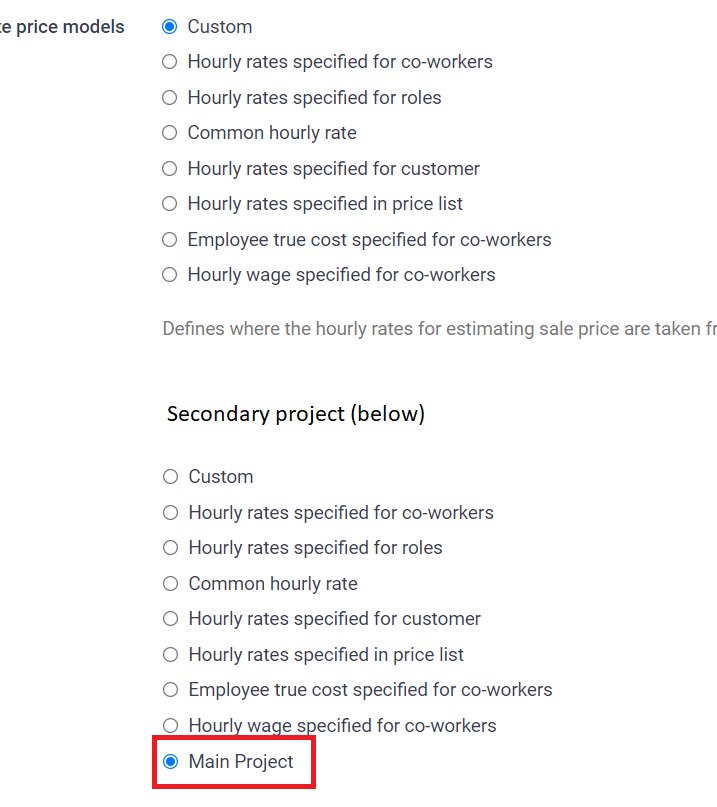
In this way you can easily set up internal invoicing between companies.
If your company group uses travel expenses, and you want to reinvoice the claim to the final customer, you can enable the option to "share expenses". Then any project expenses registered by a co-worker on a daughter project will be cloned to the main project. This means you can internally invoice the expense between companies and the end customer without needing to copy the expense manually.
How to control if the hours sync between companies and projects is correct?
Before you invoice the final customer from the main project. It is a good idea to cross-check that hours have been synced correctly. This will help you spot any errors before invoicing and give you time to correct these.
These steps should be performed by an admin in both companies. That is, has full access to all the functionalities in Moment.
First, use the hours report in the main company, and create a report that shows all the hours that : have not been invoiced or have the status "not approved" or "approved. This will give you an overview of all the hours worked during a certain period.
Then, make sure that the report includes the hours for all external co-workers in the project. This way you will only be looking at hours from the secondary project:
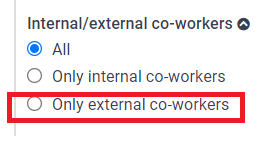
This will give you in total a report that gives all the hours synced for external workers in the main project. What is of interest in this setting is the total amount of hours. Make sure to note this number.
Second. Write the same report from the secondary project, only this time it is not necessary to do exclude workers, let he Internal/external co-workers field stay ticked for "all". This report will give you all the hours that should have been synced to the main project. As in the first report. Make sure to look at the totals, these should be the same. If they are not, please contact support and we can help you cross-check this.
Be aware that any errors in sync that are due to erroneous setup of partner companies, usually entails deleting the hours that have been registered and then adding the hours correctly manually in the timesheet of the relevant co-workers
Sharing tasks between partner companies:
A recent feature we have implemented allows for sharing of tasks between partner companies. In this way you can have an easy overview of your assigned tasks without having to change company databases.
To enable this, make sure that this setting is turned on under setup > settings > partner companies
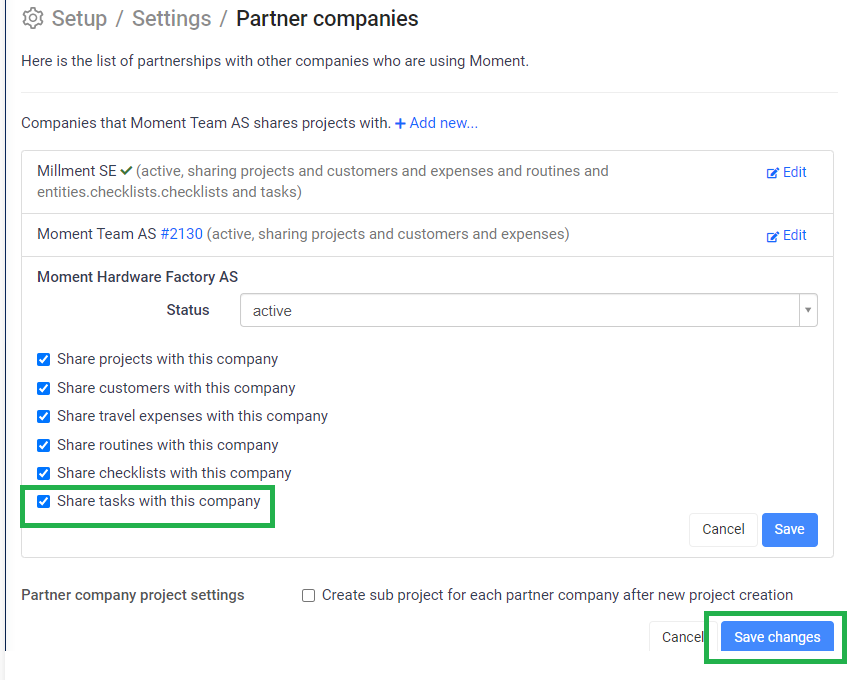
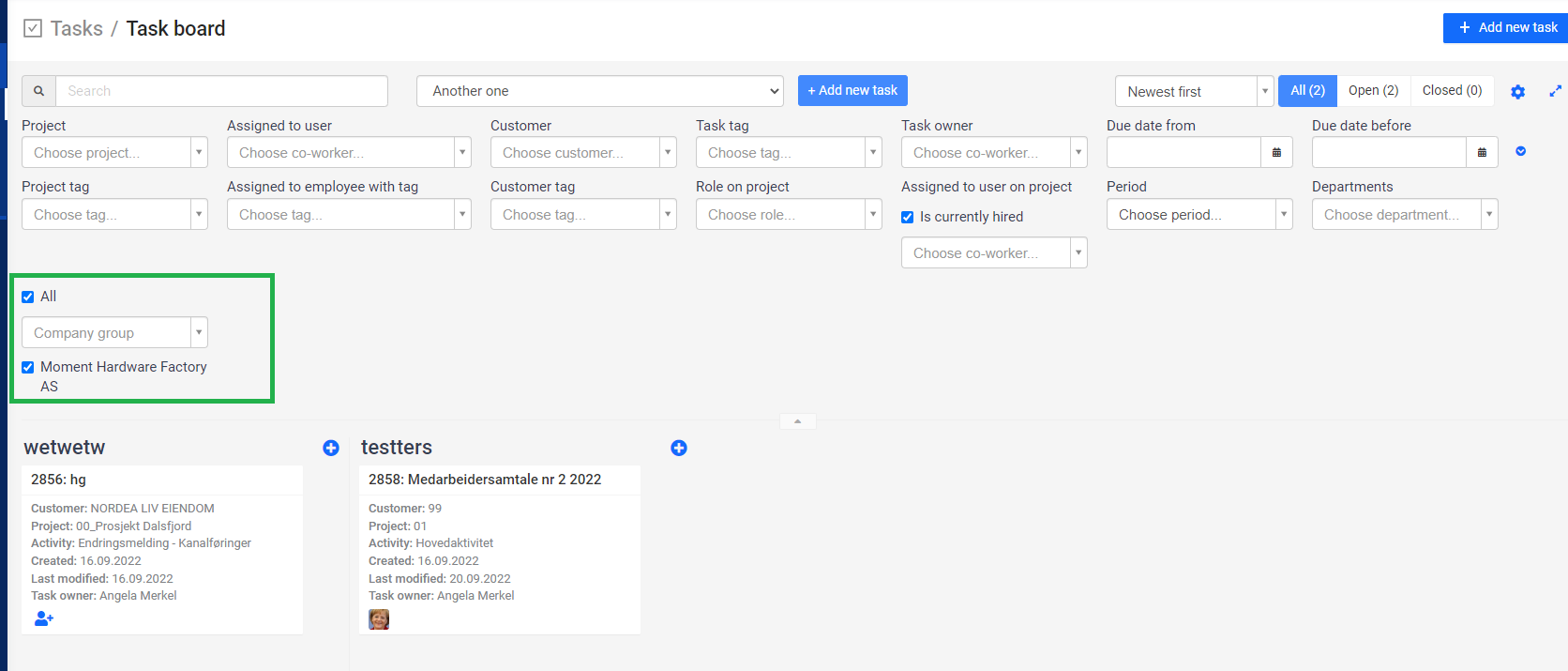
At the moment, the functionality works by displaying all the tasks corresponding to the specific companies int he group under Tasks > Taskboard. Be sure to mark checkboxes both "All" and the correct company in the Company Group
Was this article helpful?
That’s Great!
Thank you for your feedback
Sorry! We couldn't be helpful
Thank you for your feedback
Feedback sent
We appreciate your effort and will try to fix the article