Find Invoices by clicking Finances > Invoices.
The Invoices page gives you a complete overview of all invoices in the system. It helps you track billing, monitor payments, follow invoice status changes, and manage the invoice lifecycle from creation to payment.
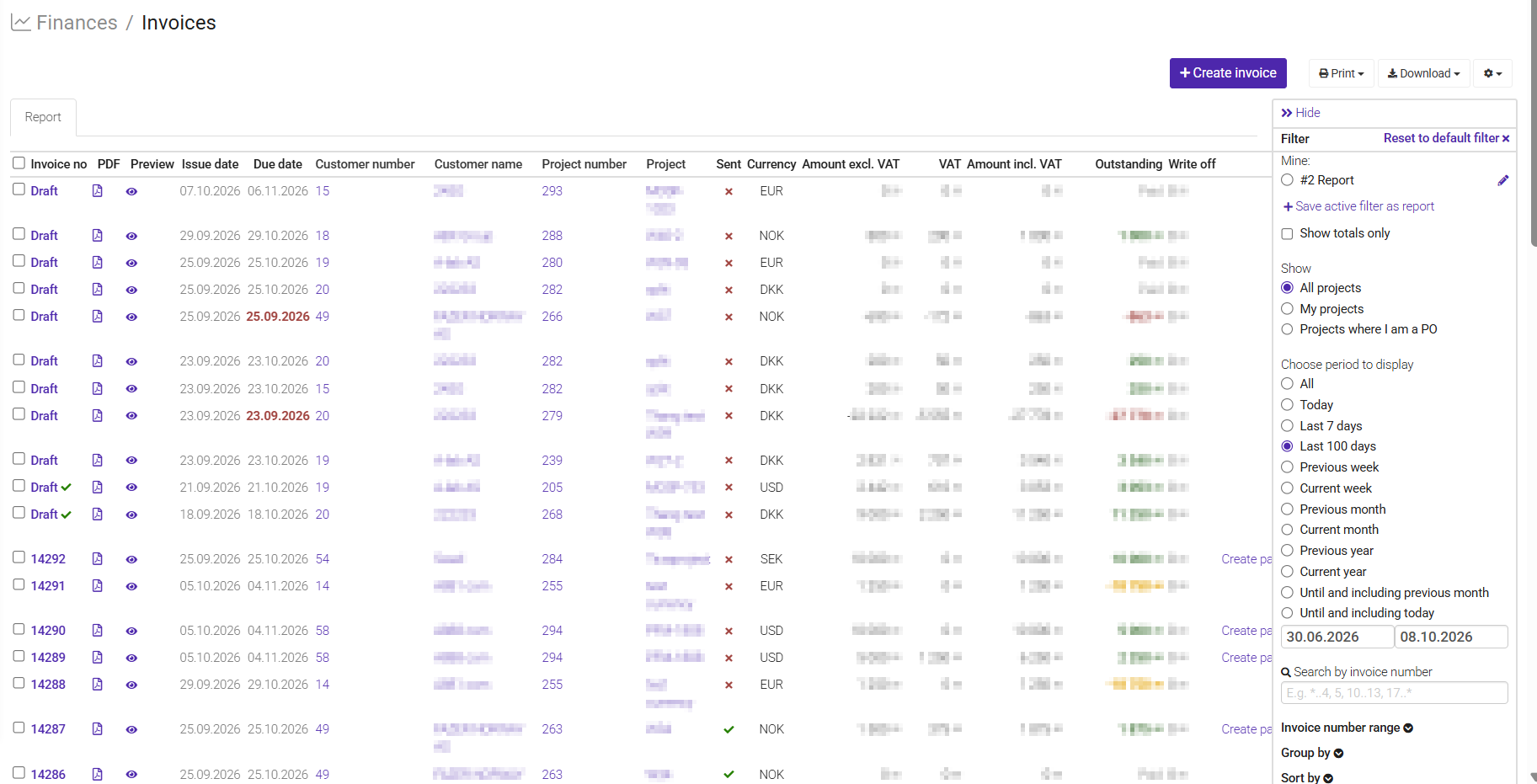
Each invoice includes important information such as:
- Customer
- Related project
- Invoice amount
- Payment status
- Invoice history
This information makes it easy to see the current status of each invoice and quickly access related customers and projects for additional details.
Invoices move through different statuses during the billing process:
| Status | Description |
|---|---|
| Draft | The invoice has been created but has not yet been finalized. |
| Approved | The invoice is ready to be sent to the customer. |
| Sent | The invoice has been issued and is awaiting payment. |
| Paid | The full payment has been received and registered. |
| Partially Paid | Part of the invoice amount has been paid, and the remaining balance is still outstanding. |
| Overdue | The payment due date has passed without full payment being received. |
When a payment is registered, the invoice balance and status are updated automatically. This ensures that invoice information remains accurate and up to date.
If an invoice needs to be corrected after it has been sent:
- Create a credit invoice for the original invoice.
- Create and send a corrected invoice if required.
Was this article helpful?
That’s Great!
Thank you for your feedback
Sorry! We couldn't be helpful
Thank you for your feedback
Feedback sent
We appreciate your effort and will try to fix the article