Find Reservations by clicking on Co-workers in the main menu.
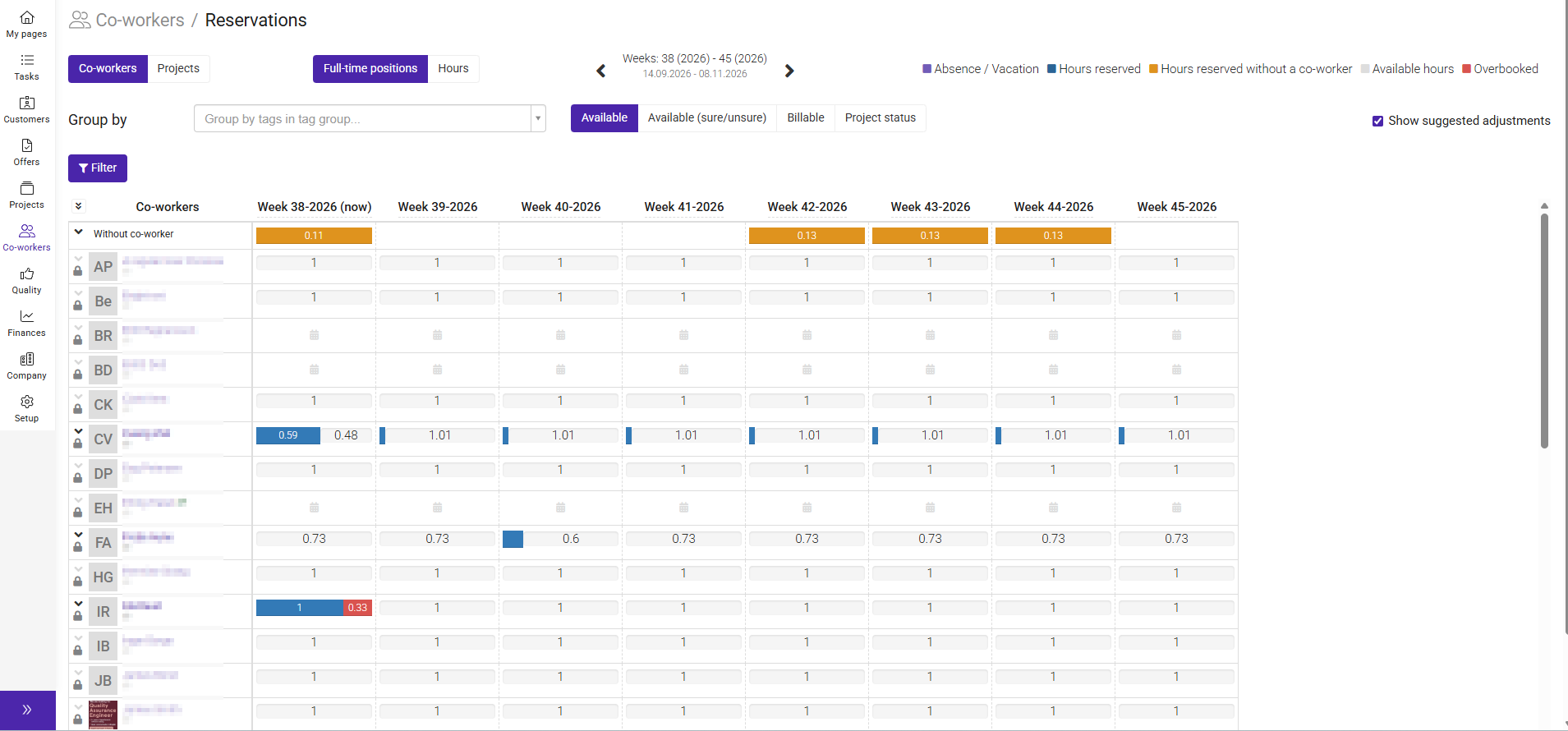
Reservations are used to plan and adjust resource allocations before updating the Project Plan.
They provide a draft view of how hours are distributed across co-workers and weeks, allowing project managers and planners to evaluate different scenarios before committing to changes.
The Project Plan is the official source for planned hours and resource allocations.Changes made in Reservations are draft changes only and do not update planned hours automatically.
The Reservations view uses colors to help you quickly understand capacity, allocations, and absences.
Color | Meaning |
|---|---|
urple | Absence or vacation. The co-worker is unavailable during the selected period. |
Dark blue | Hours reserved. These are draft hours allocated to a co-worker or project. |
Orange | Hours reserved without a co-worker. Hours have been allocated but no specific person has been assigned yet. |
Light grey | Available hours. Capacity that has not yet been allocated or reserved. |
Red | Overbooked. More hours have been reserved than the available capacity. |

Reservations allow you to compare draft allocations with confirmed project planning.
You will typically see:
- Reserved hours – Draft allocations that have not yet been confirmed
- Planned hours – Confirmed hours from the Project Plan
To modify a reservation:
- Click the pencil icon on the reservation.
- Adjust the number of hours.
- Save the change.

The updated hours will appear as draft values.
Depending on your setup:
- Original values from the Project Plan may appear crossed out.
- New draft values are shown alongside the original values.
Changes made in Reservations do not automatically update project planning.
To confirm a change:
- Open the Project Plan.
- Update the planned hours to match the approved reservation changes.
Only after updating the Project Plan will the changes become part of the official project
schedule.
Draft visibility
You can choose whether draft changes are displayed.
To show or hide draft values:
- Locate the draft toggle in the top-right corner.
- Turn the setting on or off.
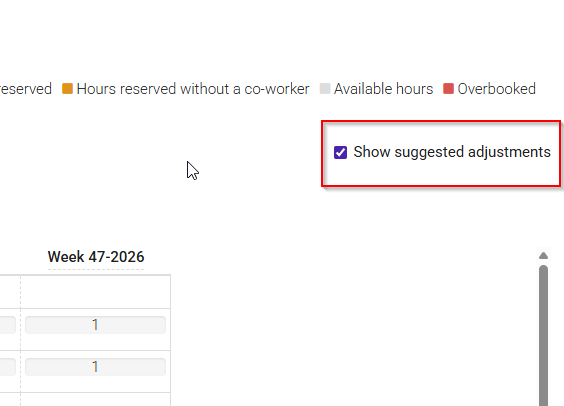
The setting is enabled by default.
Was this article helpful?
That’s Great!
Thank you for your feedback
Sorry! We couldn't be helpful
Thank you for your feedback
Feedback sent
We appreciate your effort and will try to fix the article