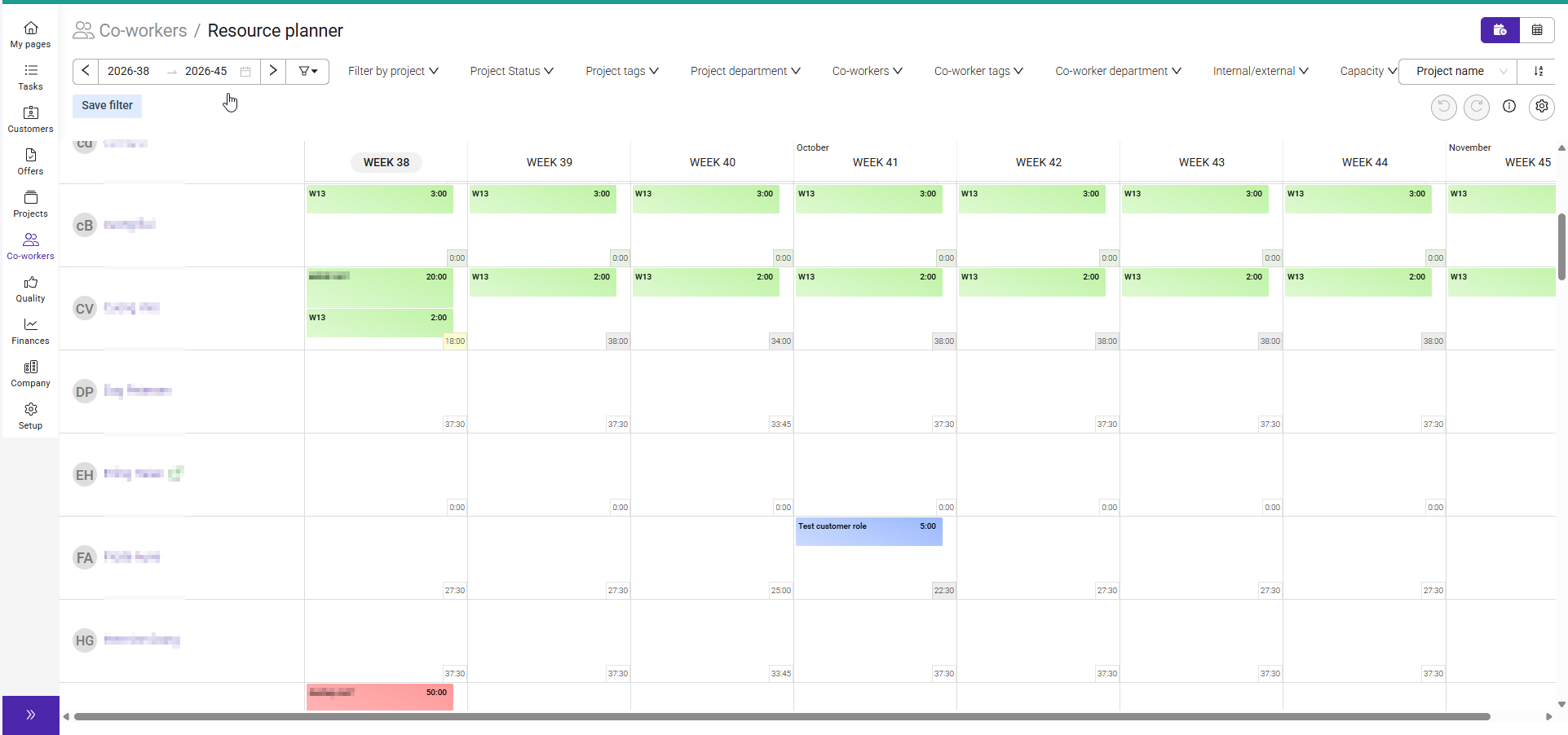
You find the Resource plan by clicking on Co-workers > Resource planner.
| Area | Description |
|---|---|
| Rows | Co-workers |
| Columns | Weeks |
| Colored boxes | Reservations (planned work) |
Each week displays an Available hours indicator showing how many hours remain available after planned work and absences have been considered.
Capacity indicators:
- Yellow = Available capacity
- Red = Overbooked (more hours planned than available)
This helps you quickly identify who can take on additional work and who may need their workload adjusted.
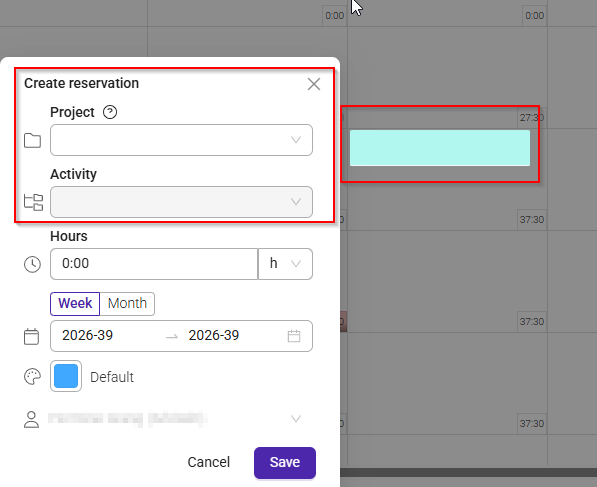
- Select an empty (white) cell.
- Choose a project.
- Select an activity.
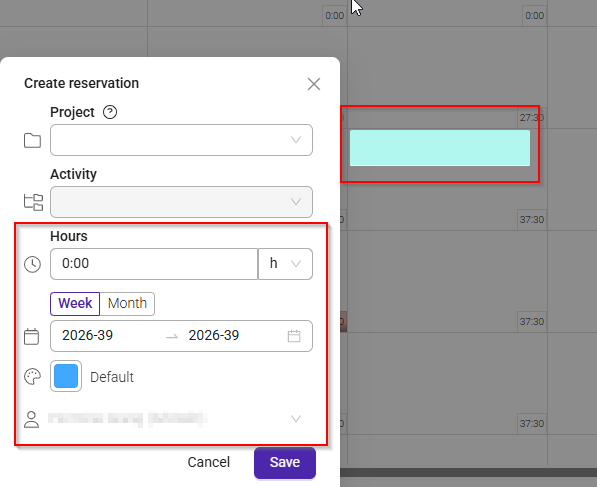
- Enter the number of hours.
Planning across multiple weeks
To distribute work over several weeks:
- Select a date range.
- Enter the total number of hours.
- Select Distribute.
- The hours will be automatically spread across the selected period.
Editing reservations
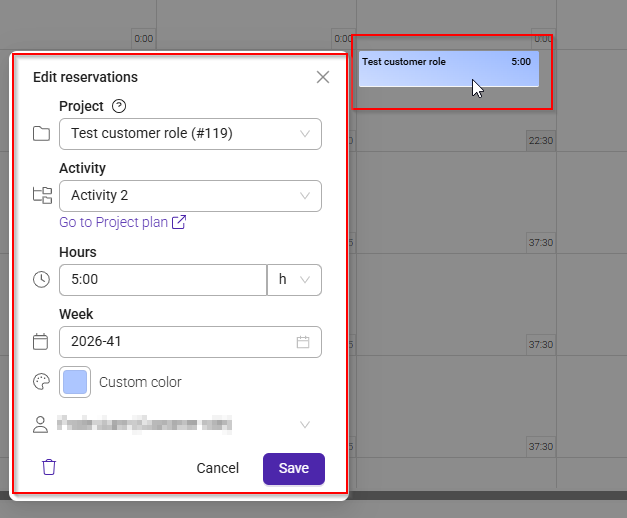
To update an existing reservation:
- Select a reservation (colored box).
- Change the hours, dates, or other details.
- Save your changes.
Adjusting plans
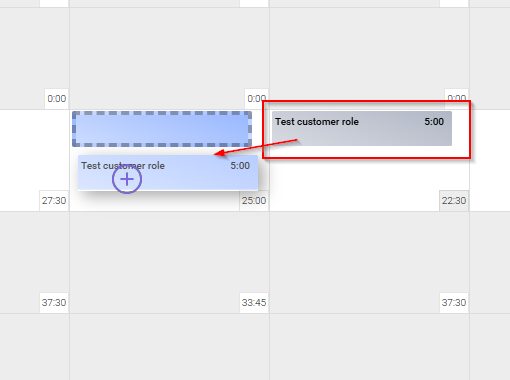
You can quickly adjust schedules using drag and drop.
Examples:
- Move reservations between weeks
- Assign work to another co-worker
- Rebalance workloads when priorities change
Tracking planned vs. estimated hours
If estimated hours are defined for project activities, you can compare:
- Estimated hours – Planned project scope
- Planned hours – Forecasted work
- Actual hours – Registered time
When planned hours exceed the estimate, the value is highlighted in red.
Project Plan integration
The Resource Planner is fully connected to Project Plan.
To view detailed project planning:
- Select Go to Project Plan.
- Review project schedules, hour tracking, and financial information.
Changes made in either view are automatically synchronized.
Connection to Reservations and Project Plan
All planning tools work together.
- Reservations created in Resource Planner are saved automatically.
- Changes are reflected on the Reservations page.
- Updates are synchronized with Project Plan.
- Changes made in one planning view are available in the others.

Customizing the view
You can tailor the planner to display only the information you need.
Available options include:
- Filter by project
- Filter by co-worker
- Filter by tag
- Show or hide activity names
Working with time ranges
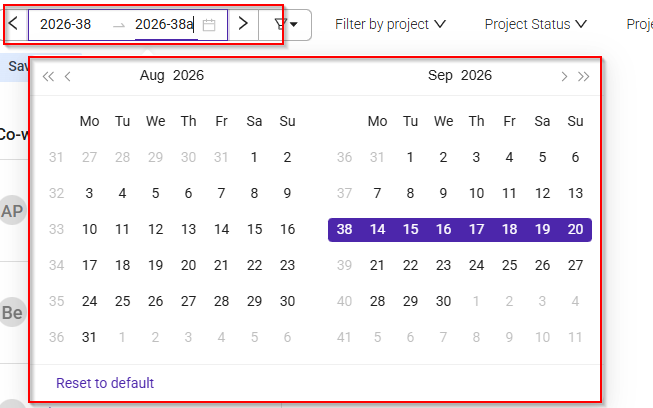
You can view:
- A single week
- Multiple weeks
- Several months
Use horizontal scrolling to move through future or previous weeks.
This makes it suitable for both short-term and long-term planning.
 Deleting multiple reservations
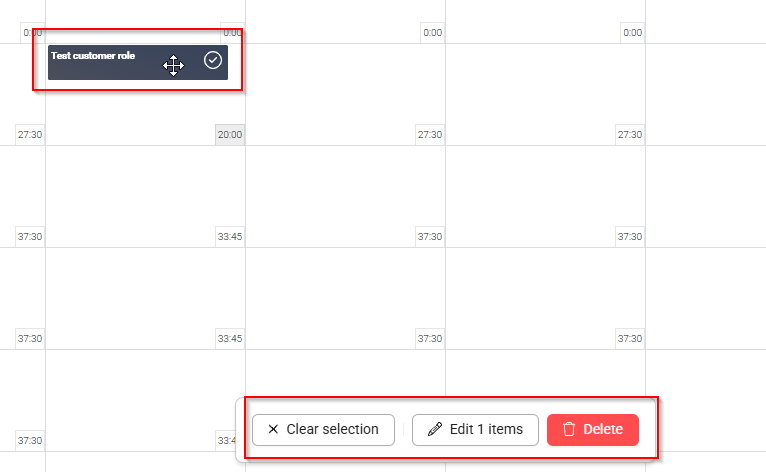
To delete several reservations at once:
- Right-click a reservation.
- Select the reservations you want to remove.
- Select More.
- Choose Delete.
Holidays and availability
Company holidays and national holidays are automatically included in capacity calculations.
When holidays occur:
- Available hours are reduced automatically.
- Capacity calculations are updated immediately.
Example:
A user who normally works 37 hours per week will have fewer available hours during a week that contains holiday days.
Was this article helpful?
That’s Great!
Thank you for your feedback
Sorry! We couldn't be helpful
Thank you for your feedback
Feedback sent
We appreciate your effort and will try to fix the article