Find the Hours Report by navigating to Company > Hours Report.
The Hours Report provides an overview of all registered hours across employees in the company. It helps you review worked hours, monitor registration status, and analyze time reporting across projects, activities, departments, or selected periods.
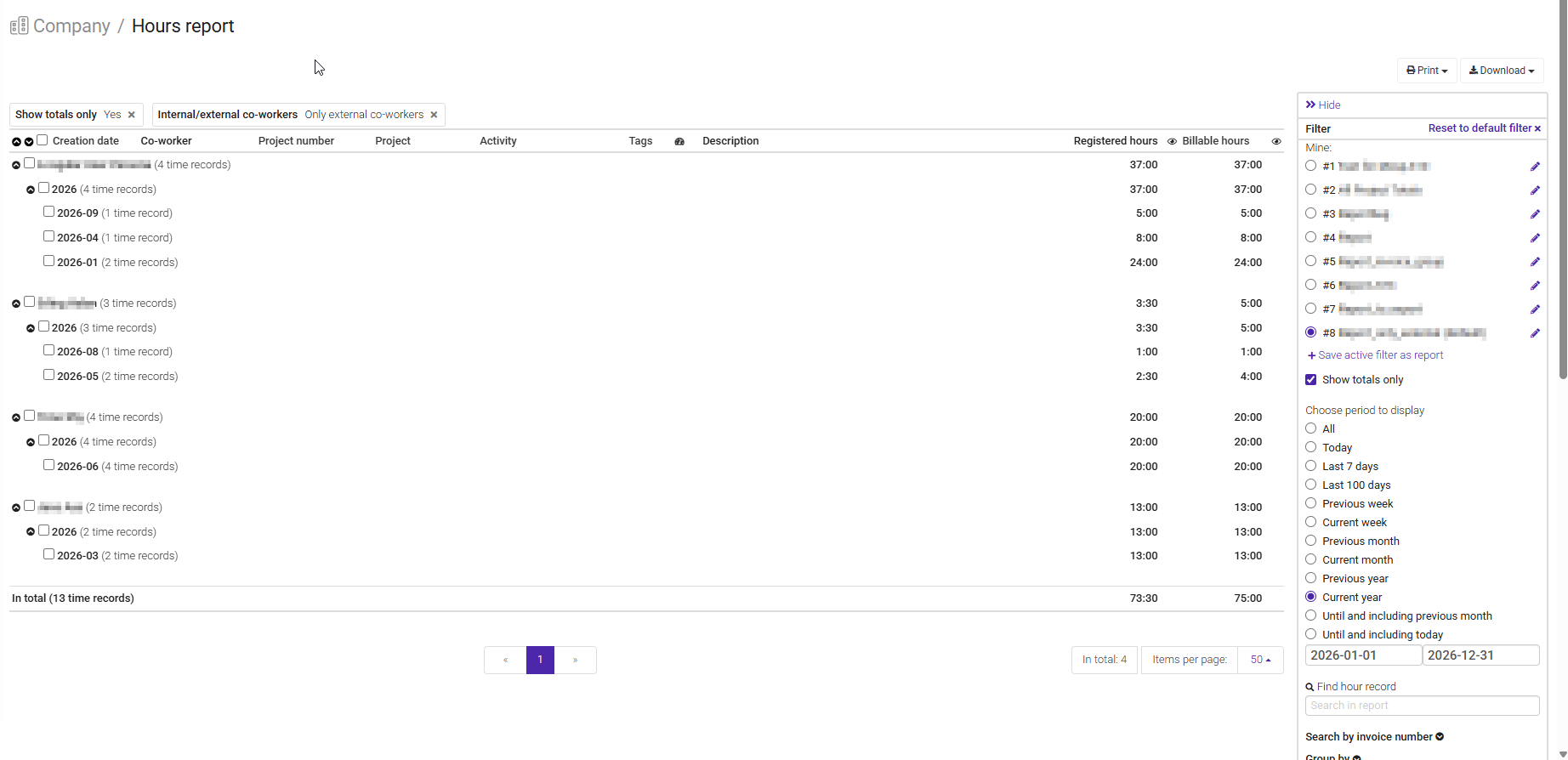
The Hours Report displays all registered hours for employees based on your permissions and access level.
The report can be used to review time registrations, follow up on approval processes, and gain insight into how hours are distributed across projects and activities.
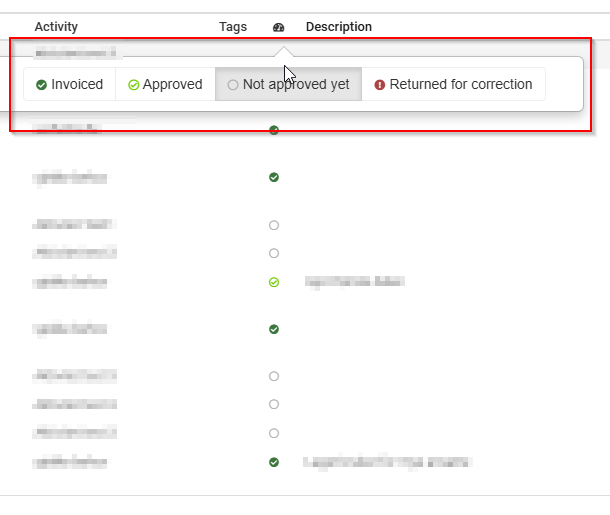
Depending on your access level, you may also see the status of registered hours, such as:
- Approved
- Invoiced
- Awaiting approval
- Returned for correction
The Hours Report includes a filter panel on the right side of the page, allowing you to customize the report and display the information you need.
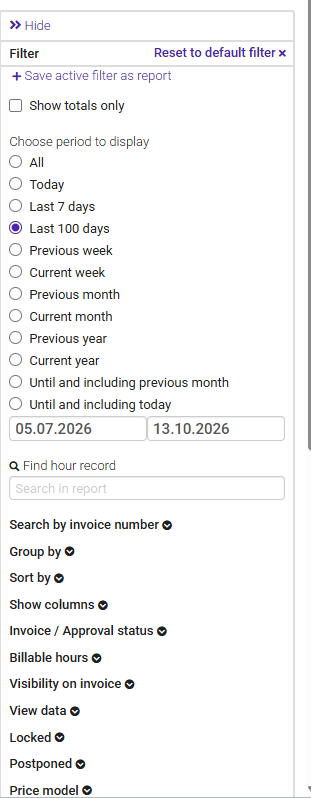
Customize the view by filtering on criteria such as period and grouping options, choosing how the data is sorted, and selecting which information is displayed in each column.
To quickly access the report with your preferred filter settings, save the active filter as a report. Click + Save active filter as report to create a saved report based on your current selections.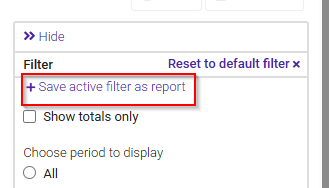
Reports you create will appear at the top of the page for quick and easy access.
Was this article helpful?
That’s Great!
Thank you for your feedback
Sorry! We couldn't be helpful
Thank you for your feedback
Feedback sent
We appreciate your effort and will try to fix the article