Tasks in Moment can be used to define objectives or key steps within a project, beyond what is possible with activities.
They help you plan work in smaller, manageable parts.
In order to use tasks, you need to enable them in your company settings.
Go to Setup > Settings > General > Modules and tick the box for “Tasks”.
Once enabled, a new tab called “Tasks” will appear in Moment
Under Company > Settings > Setup > Tasks, you will find the default settings for all tasks. All options here will apply to all new tasks created.
By creating a task, you can plan and allocate time for yourself or your co-workers
You can create tasks either directly within a project or from the task board.
When you are in the project, click on “Activities”, then click the plus icon on the right-hand side of the activity where you want to create the task. All tasks must be linked to an activity, and no tasks can exist without one.
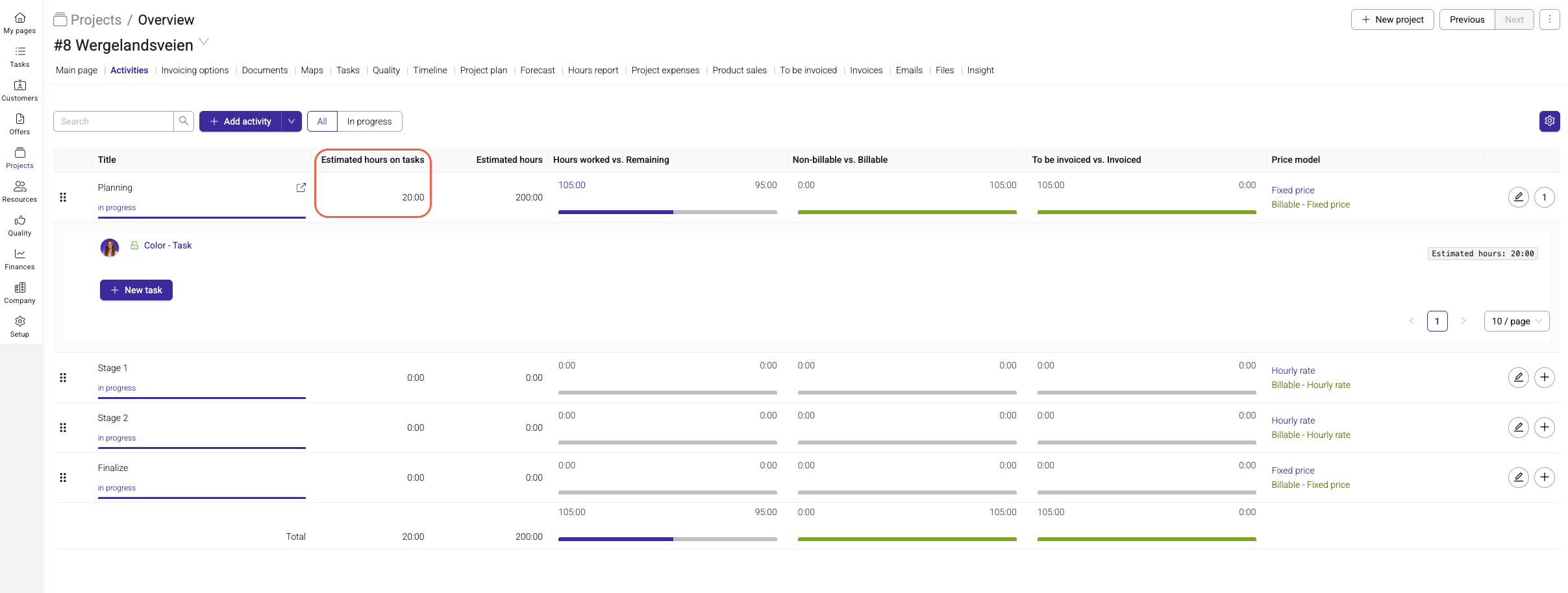
The project and activity fields will be filled in automatically, so you only need to enter a title for the task and optionally add estimated hours.
When you add estimated hours to a task, these will not be added to the estimated hours of the activity. Instead, they will appear in a separate column.
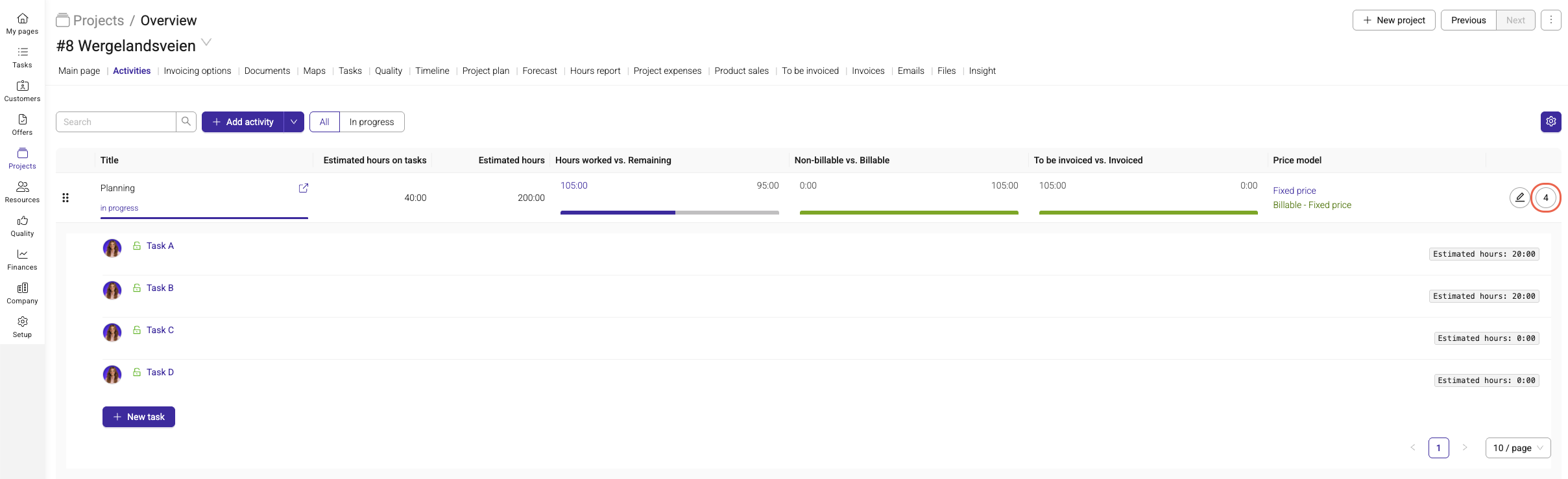
If there are multiple tasks on an activity, this will be visible on the activity overview page, where you can see the number of tasks in the button on the far right. Clicking this button will open a list of all tasks.
Clicking on a task will open a new window with the task details.
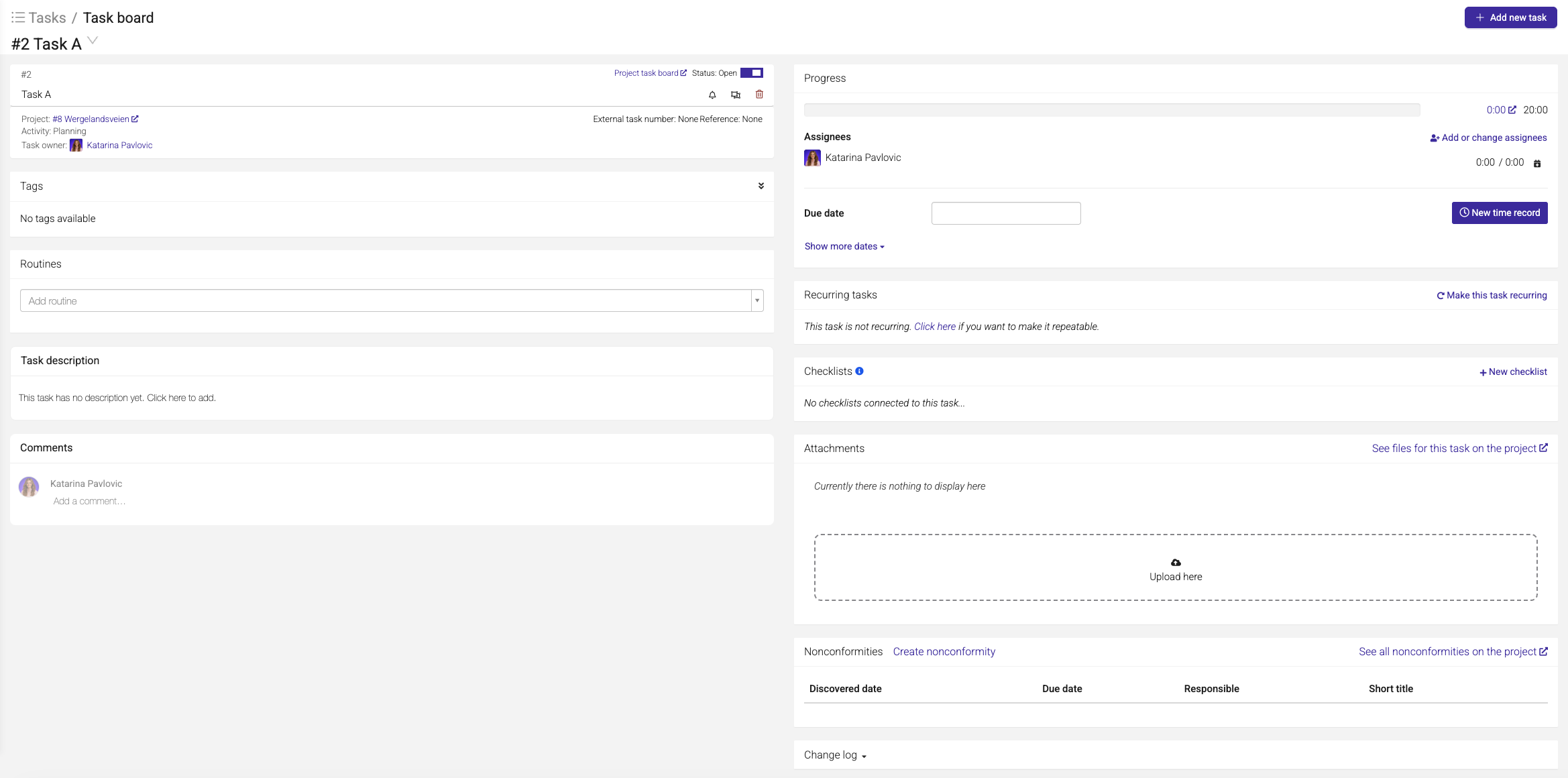
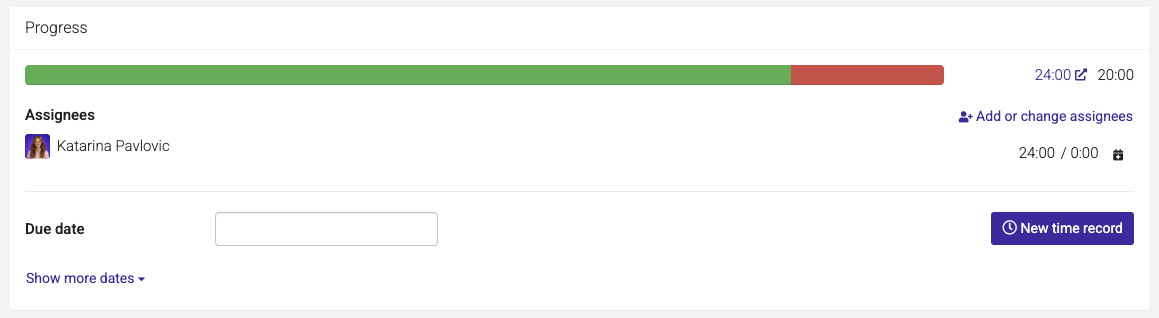
Here you can see the different options available within a task and what can be added. You can also log time directly on the task by clicking on “New timerecord.”
When you have added time to a task, you will see the timeline fill up. The green bar shows the time logged, based on the estimated hours set for the task
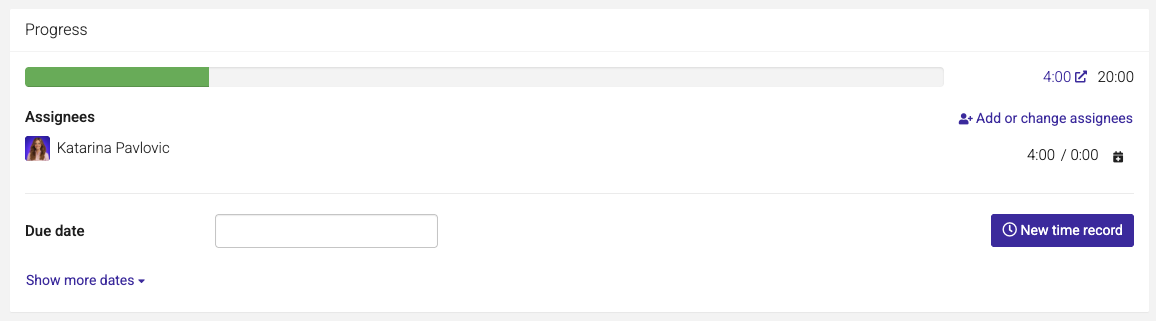
If more hours are logged than estimated, this will be shown in red. This indicates that the task has exceeded its estimated time, making it easy to spot tasks that are taking longer than planned.
Was this article helpful?
That’s Great!
Thank you for your feedback
Sorry! We couldn't be helpful
Thank you for your feedback
Feedback sent
We appreciate your effort and will try to fix the article