When you click on Invoicing Options on the project, two settings are available: Price Model and Invoice Settings.
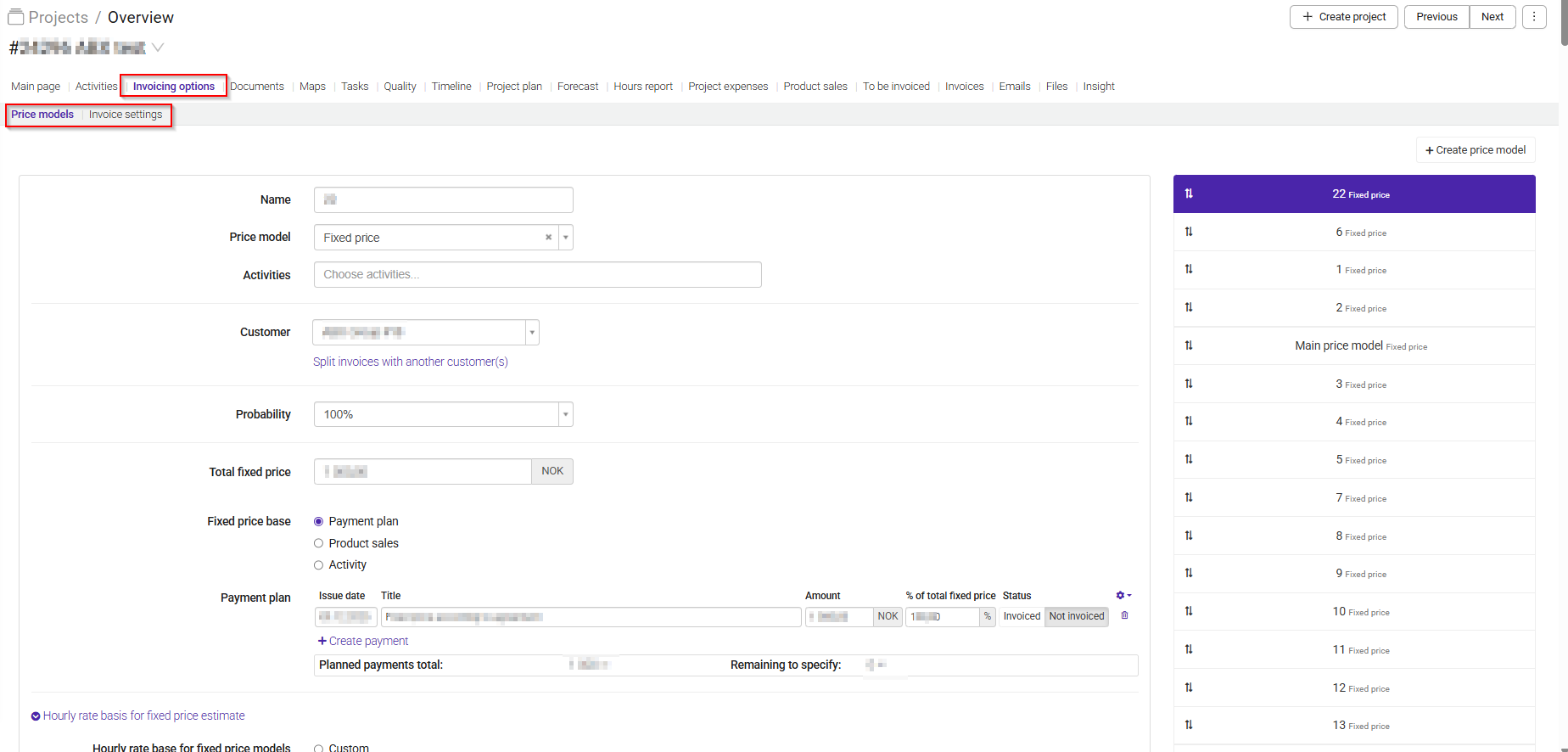
Price models are a key part of invoicing in Moment.
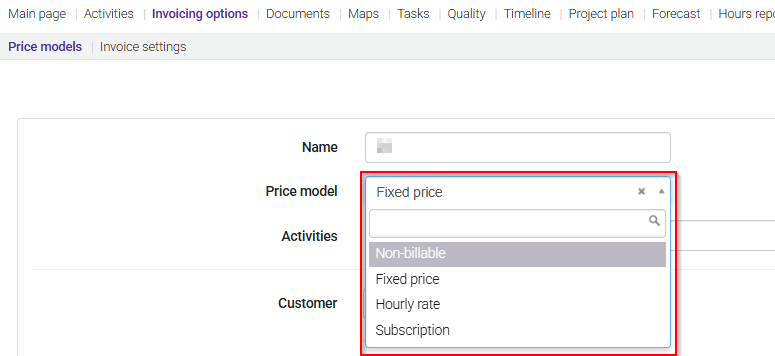
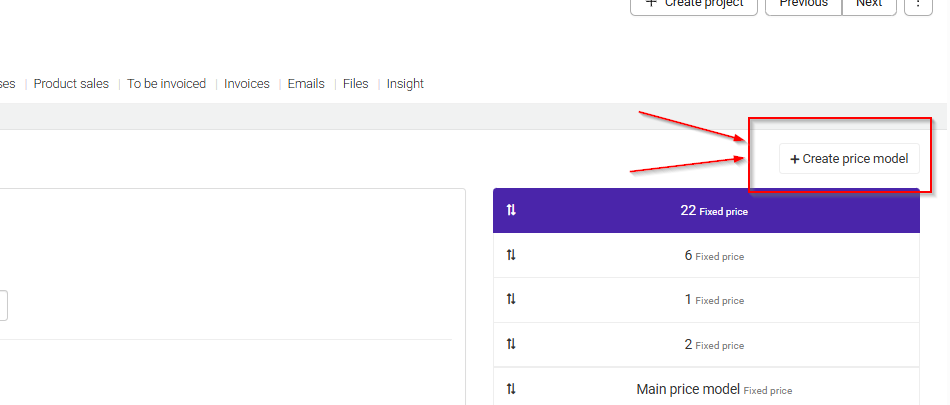
When you create a project and navigate to the Price Models section, you can create a new price model.
When Payment Plan is selected, you can define one or more planned payments. The following options are available for each payment:
- Issue Date – The date on which the invoice should be created.
- Title – The description that will appear on the invoice.
- Amount – The amount to be invoiced for each payment.
- % of Total Fixed Price – The percentage of the total fixed price that will be invoiced in this payment.
- Status – Indicates whether the payment has been invoiced or is still pending.
At the bottom, an overview shows the total value of all planned payments and any amount that has not yet been allocated to a payment.
For an Hourly Rate price model, you must choose how the hourly rates should be calculated. The following options are available:
- Custom – Define a specific hourly rate directly on the price model.
- Hourly Rates Specified for Co-workers – Use the hourly rates assigned to individual project members.
- Hourly Rates Specified for Roles – Use the hourly rates assigned to a role
- Common Hourly Rate – Apply the same hourly rate to all hours registered on the price model.
- Hourly Rates Specified for Customer – Use the rates registered for the selected customer.
- Hourly Rates Specified in Price List – Use the rates defined in a selected price list.
- Hourly True Cost – Base the hourly rate on the employee's actual cost.
- Hourly Wage Specified for Co-workers – Use the hourly wage assigned to each co-worker.
The selected option determines where the hourly rates used for revenue calculations and project planning are sourced from.
Hourly Rate per Co-worker allows you to define a custom hourly rate for each project member. You can also specify date ranges for the rates and choose to display only active team members.
At the bottom, you can enter an Estimated Total Fee to record the expected value of the project.

At the bottom of the page, you will find the Invoice History section, where all previously invoiced items are displayed together with details such as the invoice number and invoiced amount.
When you navigate to Invoicing Options > Invoice Settings on a project, you can configure invoicing settings that apply specifically to that project. These settings will override any corresponding settings defined at the company level.
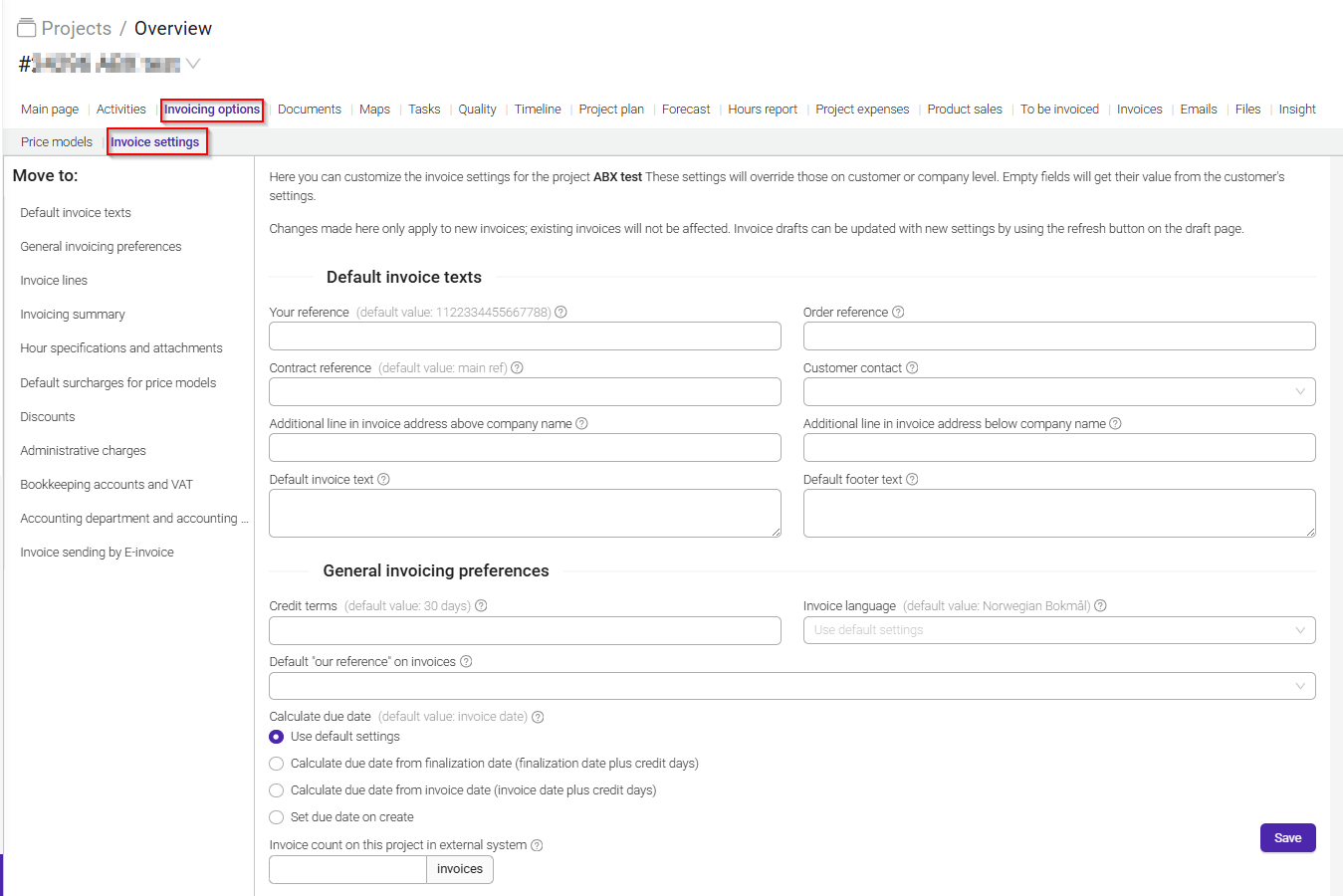
The following sections are available:
Default Invoice Texts
Define the default texts that will appear on invoices generated from the project. These texts can be used as standard invoice descriptions and can be adjusted when needed.
General Invoicing Preferences
Configure general invoicing settings, such as how invoices should be created and managed for the project.
Invoice Lines
Control how invoice lines are generated and displayed on project invoices.
Invoicing Summary
Configure how totals and summary information are presented on invoices.
Hour Specifications and Attachments
Choose whether hour specifications and additional attachments should be included with invoices sent to the customer.
Default Surcharges for Price Models
Define default surcharges that will automatically be applied to the project's price models.
Discounts
Set up discounts that should be applied when invoicing the project.
Administrative Charges
Configure administrative fees that can be added to invoices.
Bookkeeping Accounts and VAT
Define the default bookkeeping accounts and VAT settings used when invoices are created for the project.
Accounting Department and Accounting Project
Specify the accounting department and accounting project that should be linked to invoices from this project.
Invoice Sending by E-Invoice
Configure settings related to sending invoices electronically through the e-invoicing service.
Was this article helpful?
That’s Great!
Thank you for your feedback
Sorry! We couldn't be helpful
Thank you for your feedback
Feedback sent
We appreciate your effort and will try to fix the article