When you open a project, you are taken to the project's page, where you can view and manage all project-related information.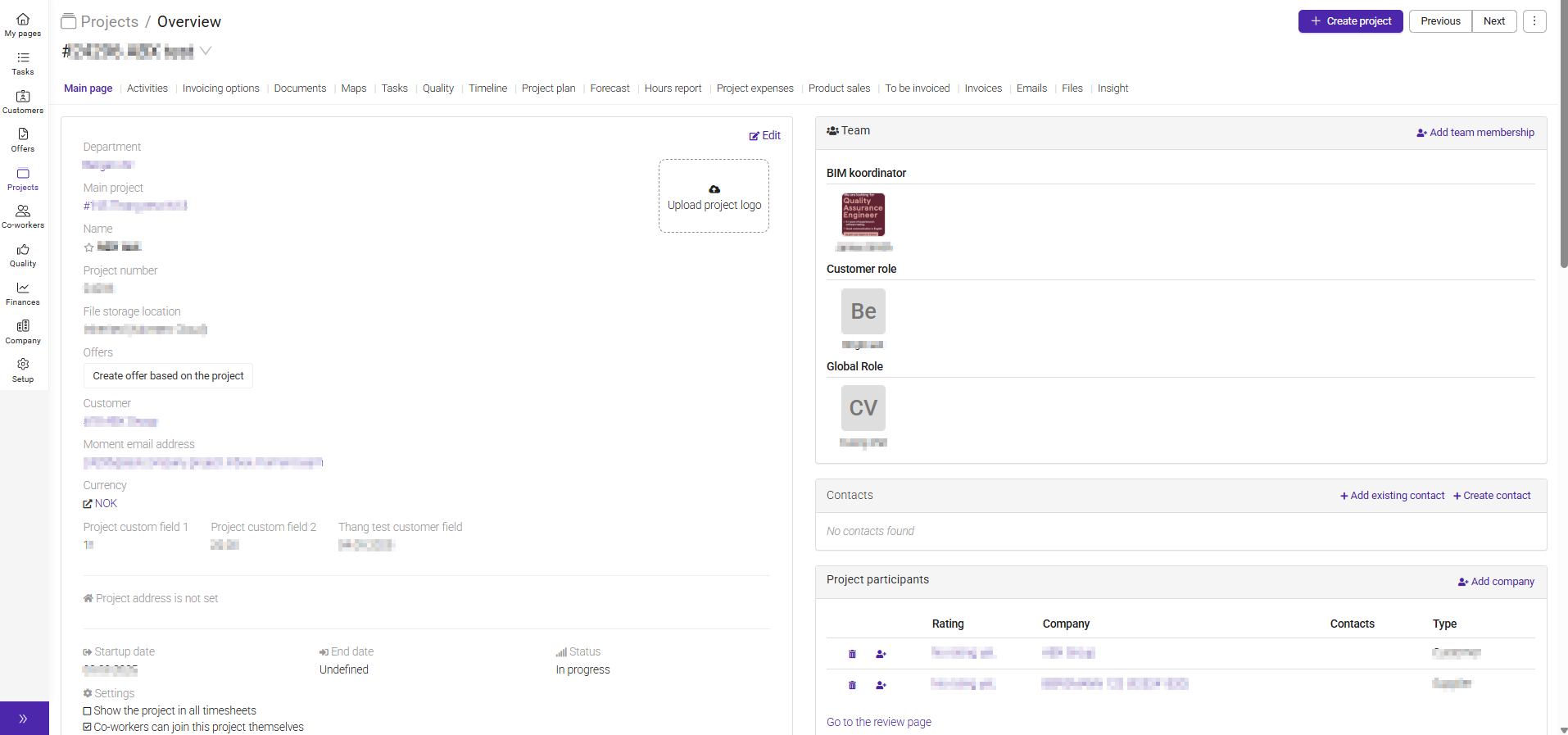
On the Project Main Page, you can view key information about the project, such as the project name, Project status and add a startup or an end date.
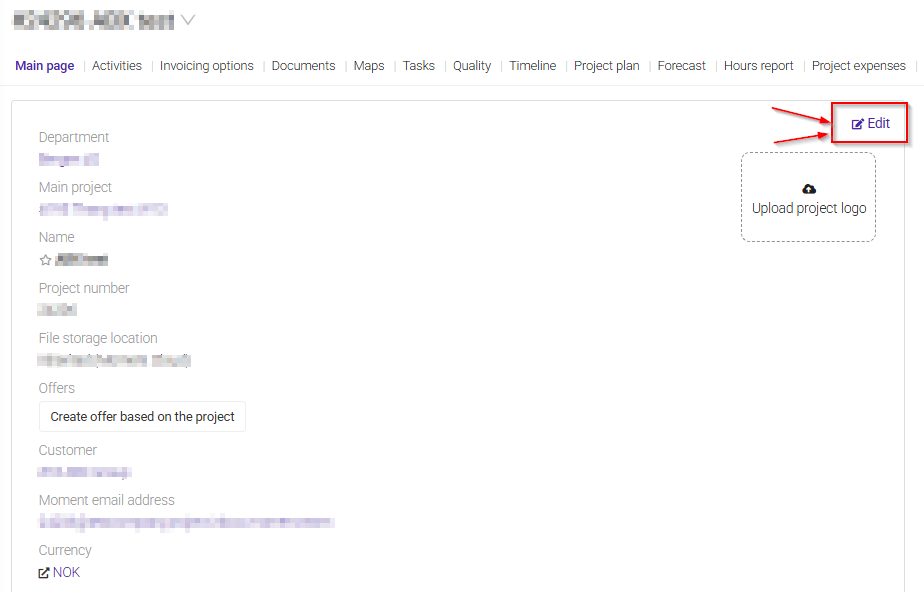
To update this information, click 'Edit'.
From here, you can add or change details and you can also configure several project-specific settings by selecting the relevant checkboxes: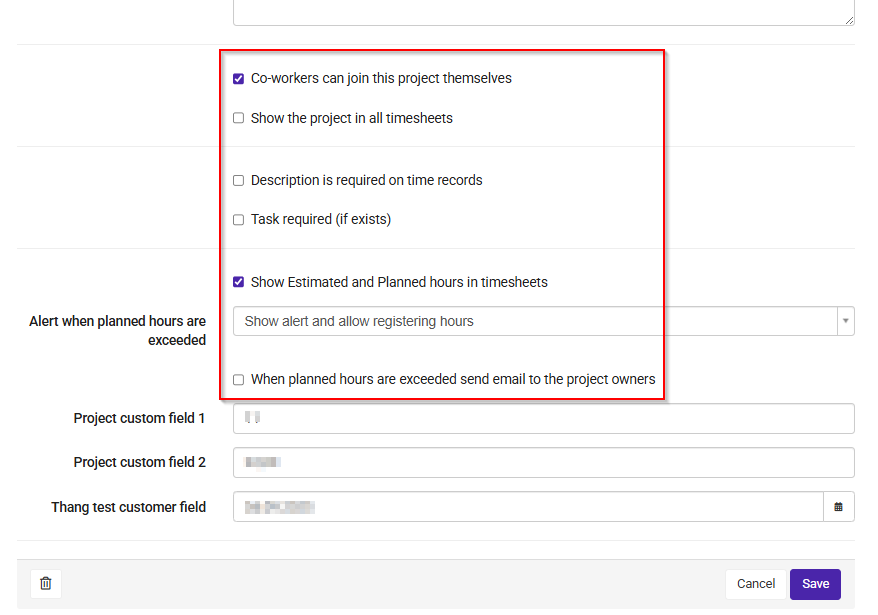
- Co-workers can join this project themselves – Allows users to add themselves to the project without being assigned by a project manager.
- Show the project in all timesheets – Makes the project visible in all users' timesheets.
- Description is required on time records – Requires users to enter a description when registering hours.
- Task required (if exists) – Requires users to select a task when registering time, if tasks have been created for the project.
- Show Estimated and Planned hours in timesheets – Displays estimated and planned hours in the timesheet view.
- When planned hours are exceeded, send email to the project owners – Sends an email notification to the project owners when the planned hours are exceeded.
After making any changes, remember to click Save at the bottom of the page to ensure your updates are stored.
You can also see an overview of the people working on the project.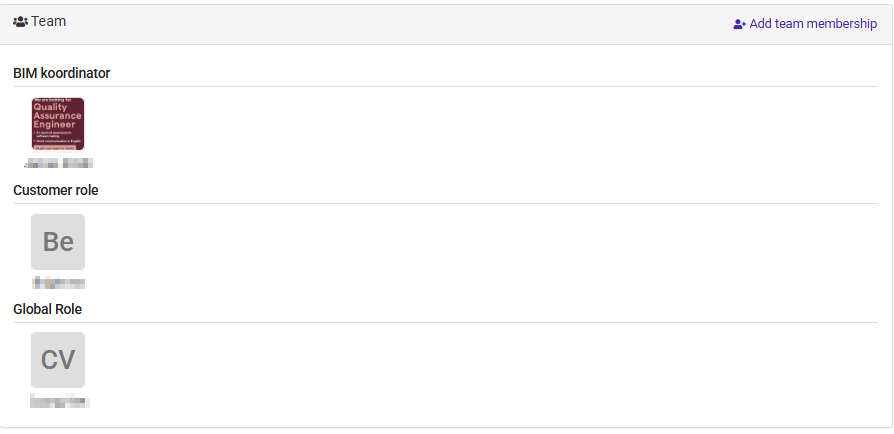
Under Team, you can add new team members and assign the appropriate role to each person. This helps ensure that everyone has the correct responsibilities and access within the project.
On the Project Main Page, you can add and manage additional project information such as contacts, checklists, goals, and notes. This helps keep all important project details in one place and makes it easier for the team to stay informed throughout the project.
The page also includes Key Numbers, which provide an overview of important project metrics. These figures are updated automatically as time, costs, and other project activities are registered.
At the bottom of the page, you will find the Change Log. This section shows all changes made to the project, including what was changed, when the change was made, and who made it. This gives you a complete history of project updates and ensures full traceability.
Was this article helpful?
That’s Great!
Thank you for your feedback
Sorry! We couldn't be helpful
Thank you for your feedback
Feedback sent
We appreciate your effort and will try to fix the article