Navigate to Setup > Company to open the Company page. Here, you can view and manage the various company settings and options.
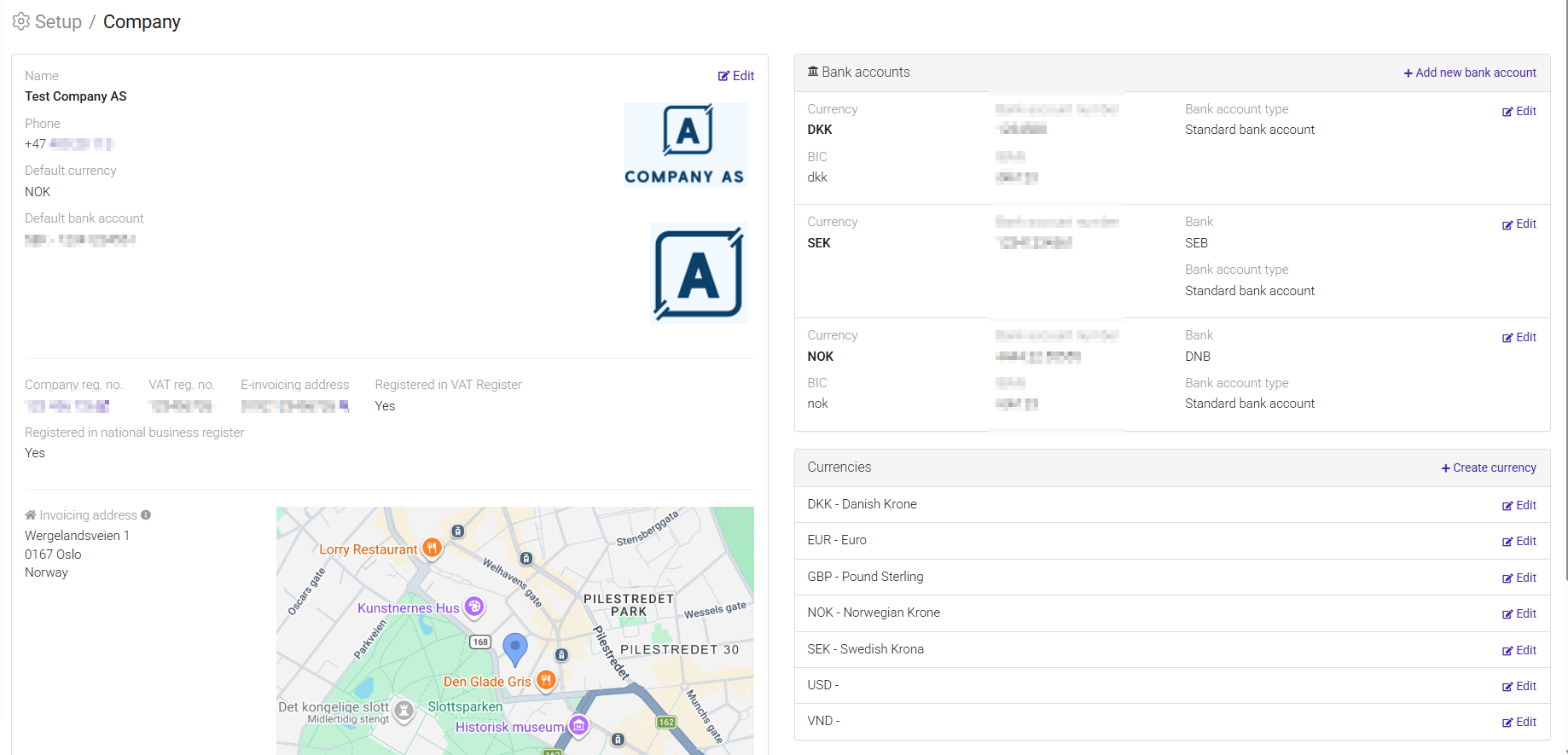
The Company Information section displays the company's basic details, including the company name, contact information, default currency, default bank account, registration numbers, e-invoicing address, and invoicing address.
To update any of this information, click Edit in the upper-right corner of the section. This opens the Edit Company page, where you can modify company details, financial settings, access settings, and address information. Once you have made the required changes, click Save to apply them.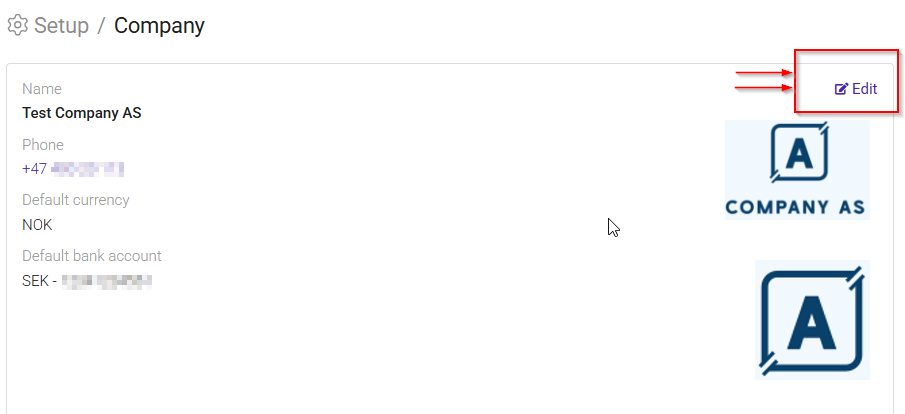
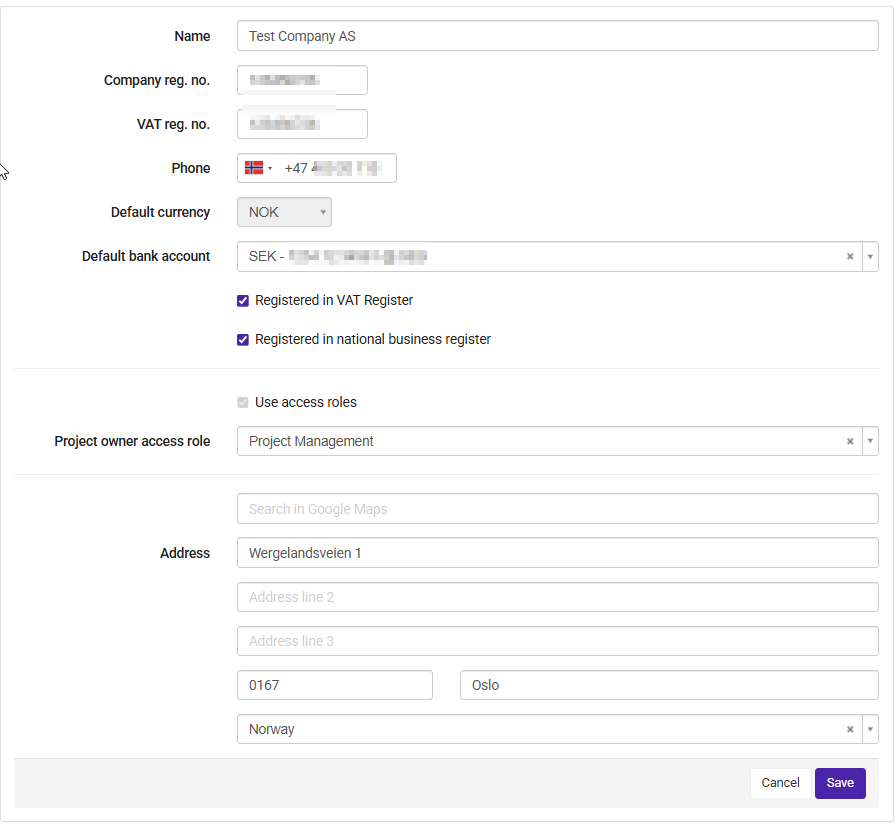
| Field | Description |
|---|---|
| Name | Enter the legal name of the company. This name will be displayed throughout the system and on reports and documents where company information is used. |
| Company reg. no. | Enter the company's registration number as issued by the national business registry. |
| VAT reg. no. | Enter the company's VAT registration number. This number is used for tax and invoicing purposes. |
| Phone | Enter the main company phone number, including the correct country code. |
| Default currency | Select the currency that will be used as the default currency for the company. |
| Default bank account | Select the bank account that should be used by default in transactions, payments, and invoicing processes. |
| Registered in VAT register | Enable this option if the company is registered for VAT. This affects VAT handling and reporting within the system. |
| Registered in national business register | Enable this option if the company is registered in the national business registry. |
| Use access roles | Enable this option to control user permissions through predefined access roles. |
| Project owner access role | Select the role that should automatically be assigned to project owners. This determines the permissions project owners have within the system. |
| Search | Search for an address to automatically populate the address fields. |
| Address | Enter the company's invoicing or registered business address, including street name, postal code, city, and country. |
| Save | Saves all changes made to the company information. |
| Cancel | Closes the page without saving any changes. |
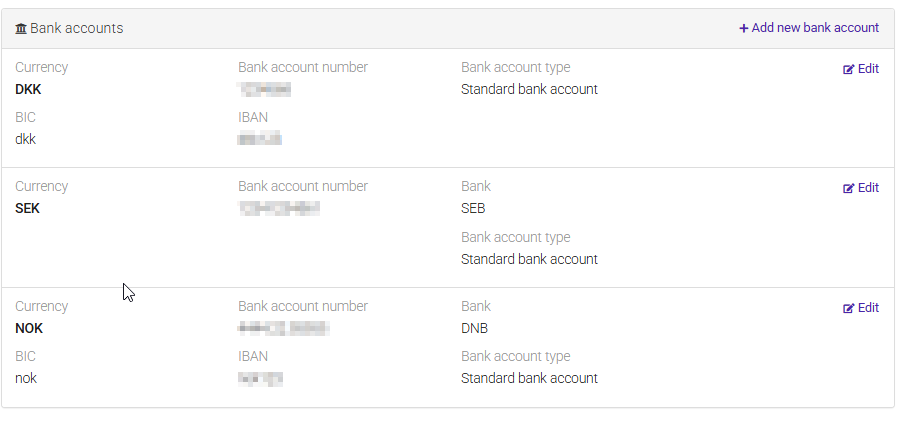
Under Bank Accounts, you can view all bank accounts registered for the company. For each account, the currency, account number, bank, and account type are displayed. Click Add New Bank Account to create a new account, or Edit to update an existing one.
You can view all currencies available for the company. Click Create Currency to add a new currency, or Edit to update an existing currency configuration.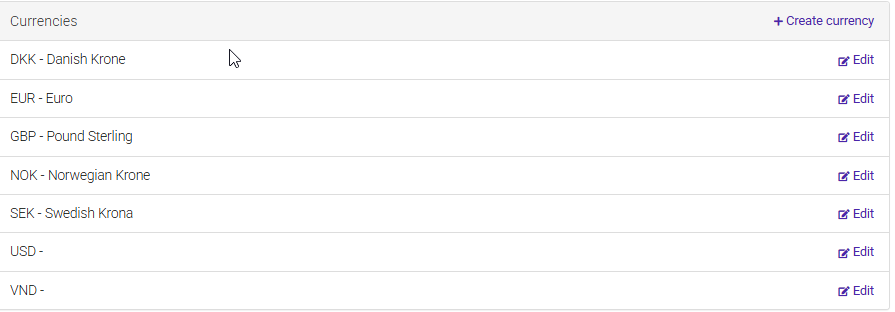
Was this article helpful?
That’s Great!
Thank you for your feedback
Sorry! We couldn't be helpful
Thank you for your feedback
Feedback sent
We appreciate your effort and will try to fix the article