The Menu Items page allows administrators to control the structure and visibility of menu items throughout the application.
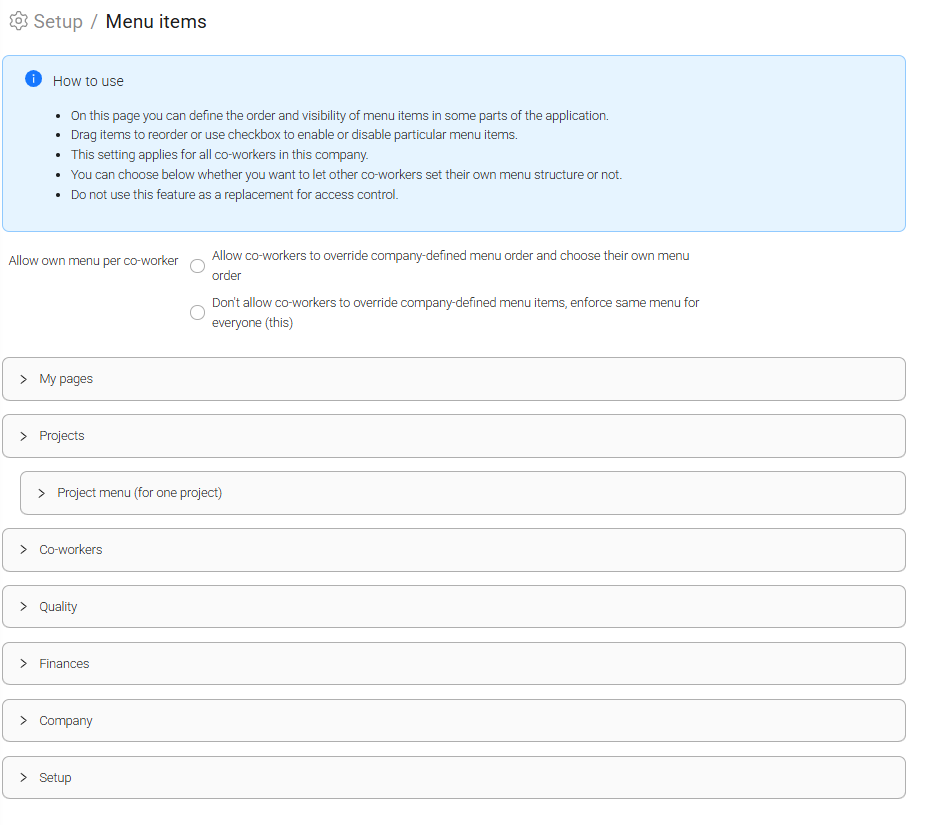
This makes it possible to create a consistent navigation experience and ensure that users have easy access to the features they need most.
From this page, you can:
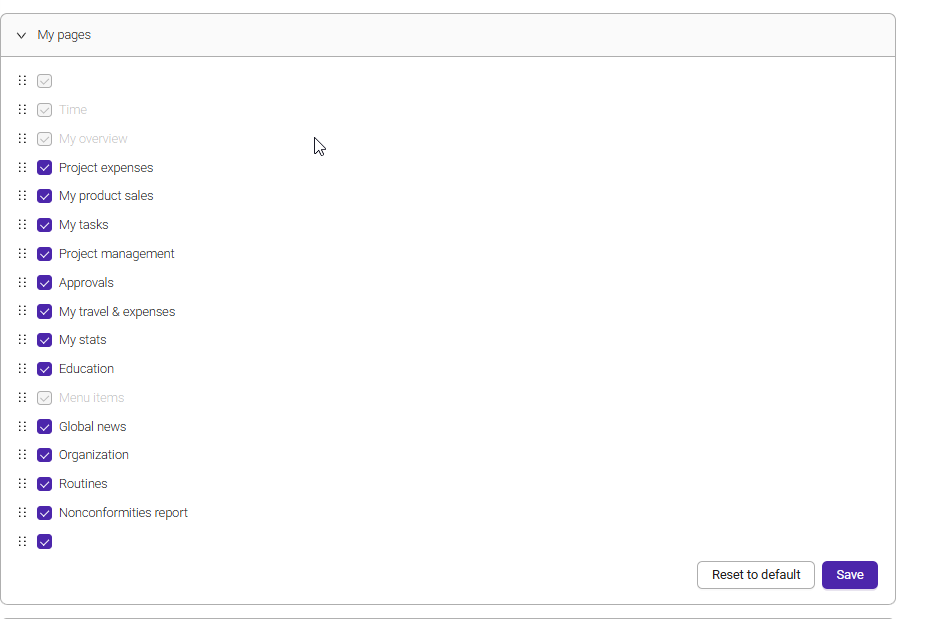
- Change the order of menu items by dragging and dropping them into the desired position.
- Enable or disable specific menu items using the available checkboxes within each menu section.
- Control which menu items are visible to all co-workers in the company.
- Create a standardized menu structure for all users.
Note: Menu configuration affects navigation only and should not be used as a replacement for access control. Users may still require the appropriate permissions to access certain functionality.
You can choose how much control co-workers have over their own menu layout:
- Allow co-workers to override company-defined menu order and choose their own menu order
Users can customize the order of menu items in their own workspace without affecting other users. - Don't allow co-workers to override company-defined menu items, enforce same menu for everyone
All users will see the same menu structure defined by the company administrator.
The page is organized into several expandable menu categories:
- My Pages
- Projects
- Project Menu (for one project)
- Co-workers
- Quality
- Finances
- Company
- Setup
Expand a section to view and configure the menu items available within that area of Moment.
Was this article helpful?
That’s Great!
Thank you for your feedback
Sorry! We couldn't be helpful
Thank you for your feedback
Feedback sent
We appreciate your effort and will try to fix the article