Tags help you organize and categorize information throughout Moment, including customers, projects, tasks, and other areas.
Unlike traditional folders, tags allow the same item to belong to multiple categories at the same time, making it easier to organize and find information in different ways.
Tags can also be used in reports, where they help you filter, group, and sort data to get the information you need.
You can manage tags by navigating to Setup → Tags.
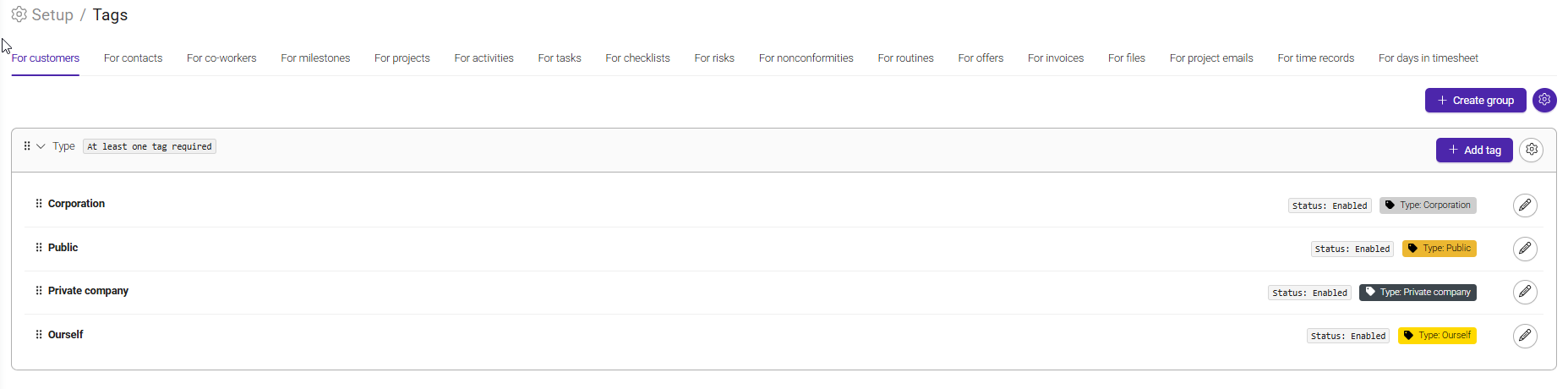
Tags are organized into categories, each connected to a specific area in Moment, such as customers, projects, or tasks. While the categories differ, tags work the same way across the system.
For example, customer tags can be used to classify customers by type, region, industry, or any other criteria that are relevant to your business.
A customer can have multiple tags assigned, allowing you to organize customers more flexibly than with a traditional folder structure.
To add tags to a customer, open the customer record and locate the Tags section.
From there, you can add or remove tags as needed. Assigned tags are visible in the customer overview and can be used as filters in reports.
Common uses for customer tags include identifying public and private customers, highlighting reference customers, or keeping track of customers that should receive specific communication or marketing activities.
Using tags in reports
Tags are particularly useful when creating reports.
They can be used to include or exclude specific groups of customers, projects, or other records.
For example, you may want to create a project report that only shows projects from a specific office location or business area.
To do this, create a project tag and assign it to the relevant projects. You can then use the tag as a filter in your report to display only projects with that tag.
Tags can also be used to exclude information. When selecting filters in a report, you can choose whether a tag should be included or excluded, making it easy to narrow down your results and focus only on the data that is relevant.
Was this article helpful?
That’s Great!
Thank you for your feedback
Sorry! We couldn't be helpful
Thank you for your feedback
Feedback sent
We appreciate your effort and will try to fix the article