The Project Plan in Moment is designed to help project managers manage resources and monitor project progress effectively.
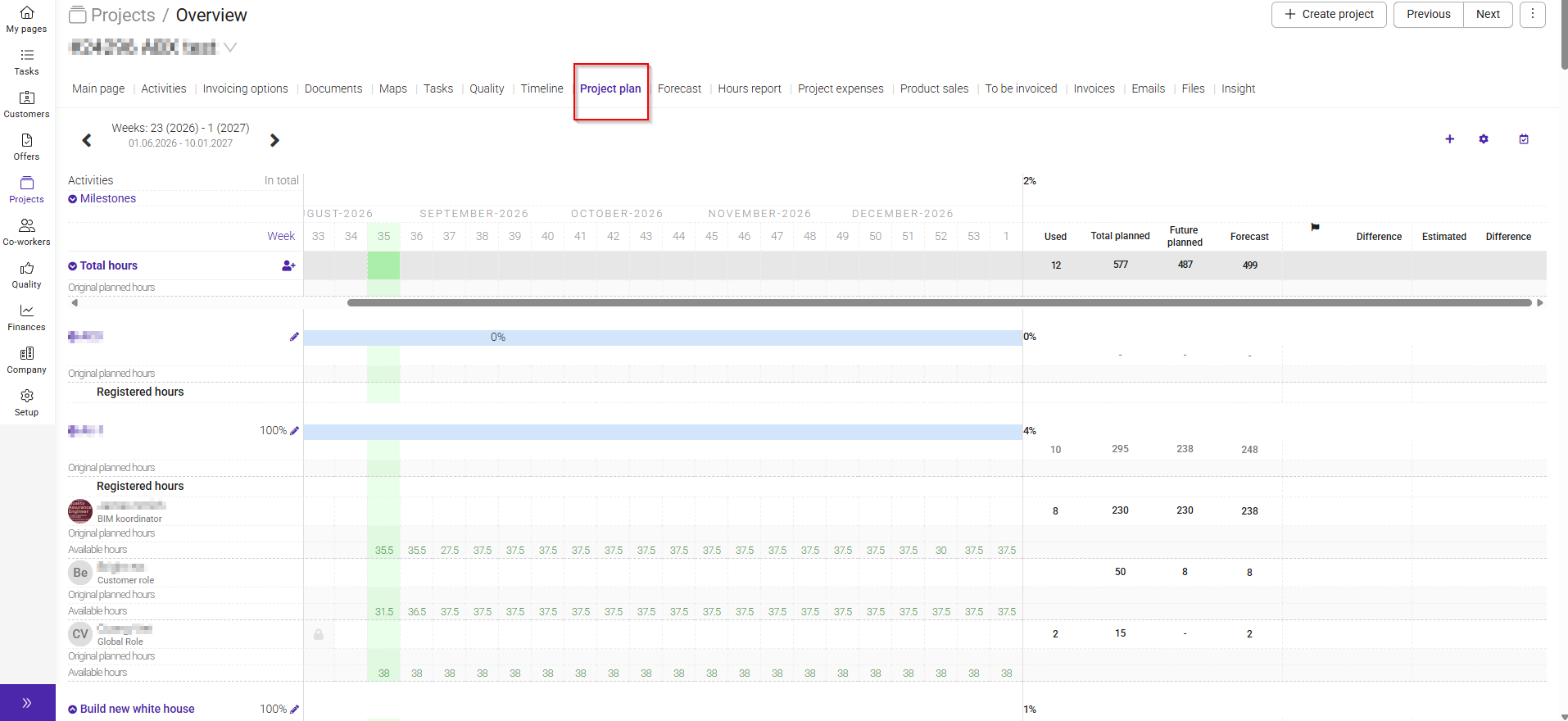
It provides a continuous overview of estimated hours, planned hours, and actual hours registered through timesheets, making it easier to track project performance and identify deviations throughout the project lifecycle.
The project plan is displayed with weeks arranged horizontally and activities listed vertically. This layout gives you a clear overview of when work is planned and which activities are being worked on during each stage of the project.
The current week is highlighted in green so that you can quickly identify where you are in the project timeline.
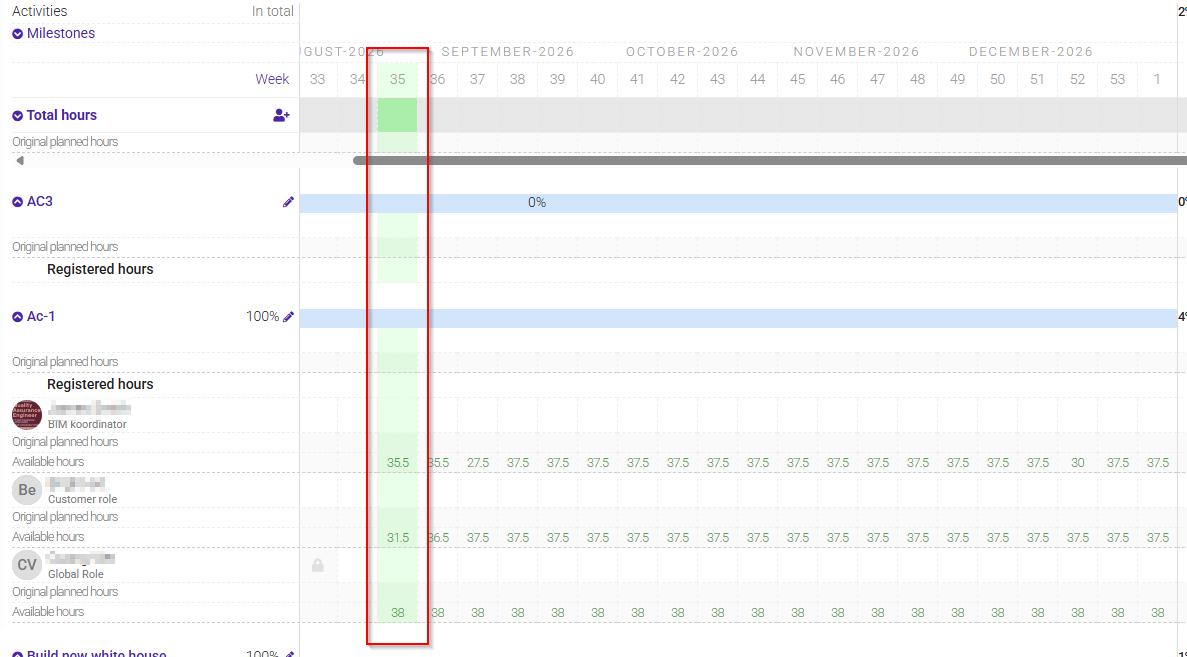
On the far right side of the plan, you will find the columns Forecast, Estimated, and Difference:
- Forecast shows the currently planned number of hours for the activity.
- Estimated shows the estimated number of hours for the activity.
- Difference shows the variance between the forecasted and estimated hours.
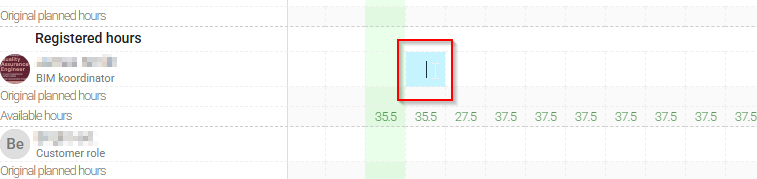
You can click and drag across multiple weeks to select them at the same time, then enter the number of hours the employee is expected to work per week. This allows you to plan several weeks at once instead of entering hours one week at a time.

Under the project plan, you can see an overview of the project's financial performance, including budget utilization, revenue, costs, and resource consumption.
If you click the gear icon in the top-right corner of the Project Plan, a menu with additional display options will appear. These options allow you to customize the information shown in the project plan.
The available options are:
- Display decimals – Show hours with decimal values.
- Available hours – Display available working hours for each resource.
- Original planned hours – Show the original planned hours before any adjustments.
- Difference – Display the difference between planned and actual hours.
- Ex-members – Include former project members in the view.
- Show hours summary tooltip on hover on cells – Show a summary of hours when hovering over a cell.
- Registered hours – Display hours that have been registered.
- Comparable basis – Show baseline values used for comparison.
- Total planned hours – Display the total planned hours.
- Planned hours – Show the current planned hours.
- Period and progression – Display period and project progress information.
- Estimated hours on activities – Show estimated hours on activities.
- Pin total hours section to header – Keep the total hours section visible while scrolling.
- Edit visibility of activities – Select which activities should be visible in the Project Plan.
Was this article helpful?
That’s Great!
Thank you for your feedback
Sorry! We couldn't be helpful
Thank you for your feedback
Feedback sent
We appreciate your effort and will try to fix the article